
The role of the UI is to display the application data on the screen. The UI also serves as the primary point of user interaction. Whenever the data changes, either due to user interaction (like pressing a button) or external input (like a network response), the UI updates to reflect those changes. Effectively, the UI is a visual representation of the application state as retrieved from the data layer.
However, the application data you get from the data layer is usually in a different format than the information you need to display. For example, you might only need part of the data for the UI, or you might need to merge two different data sources to present information that is relevant to the user. Regardless of the logic you apply, you need to pass the UI all the information it needs to render fully. The UI layer is the pipeline that converts application data changes to a form that the UI can present, and then displays it.
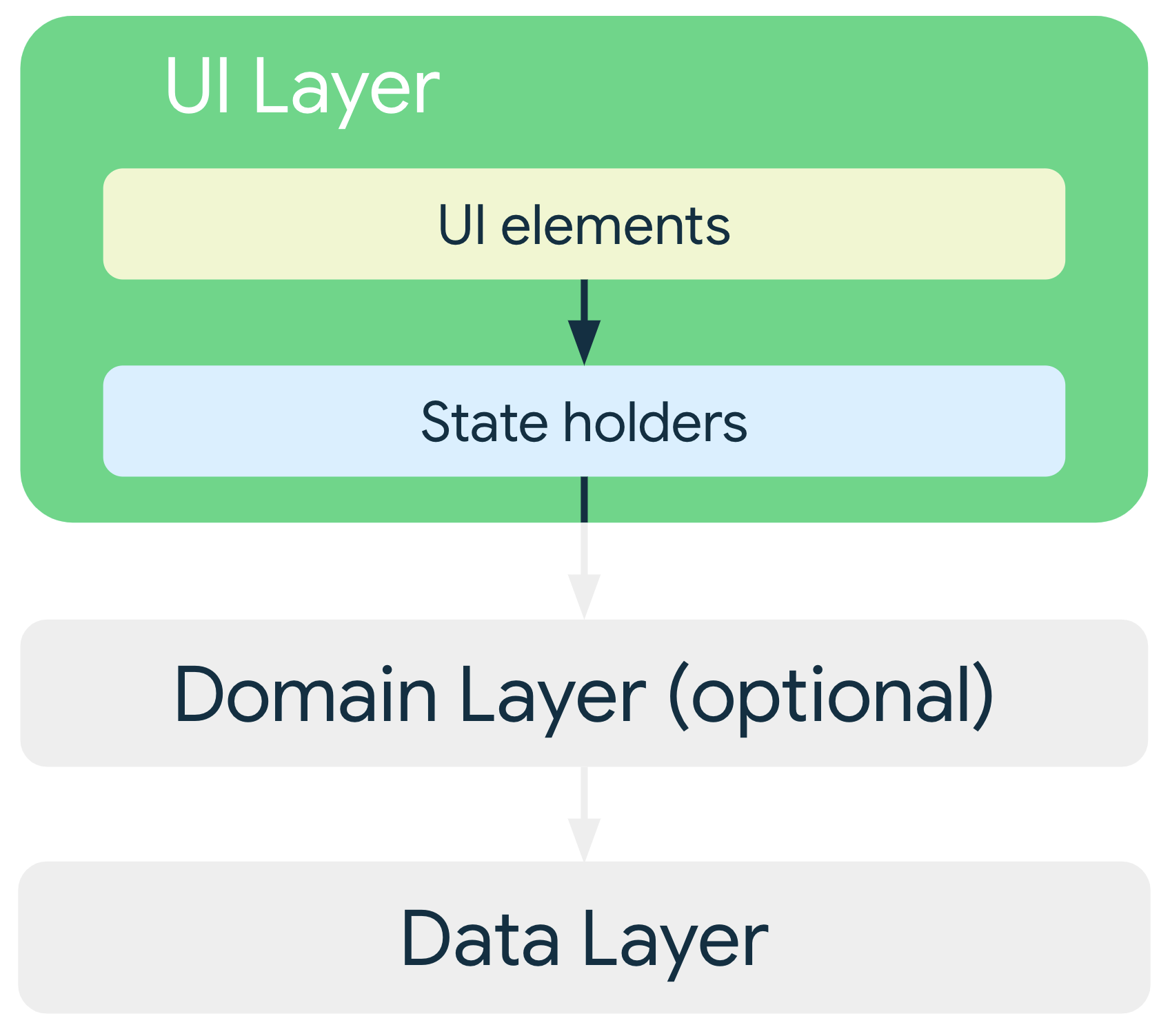
A basic case study
Consider an app that fetches news articles for a user to read. The app has an articles screen that presents articles available to read, and also lets signed-in users bookmark articles that really stand out. Given that there might be a lot of articles at any time, the reader must be able to browse articles by category. In summary, the app lets users do the following:
- View articles available to read.
- Browse articles by category.
- Sign in and bookmark certain articles.
- Access some premium features if eligible.
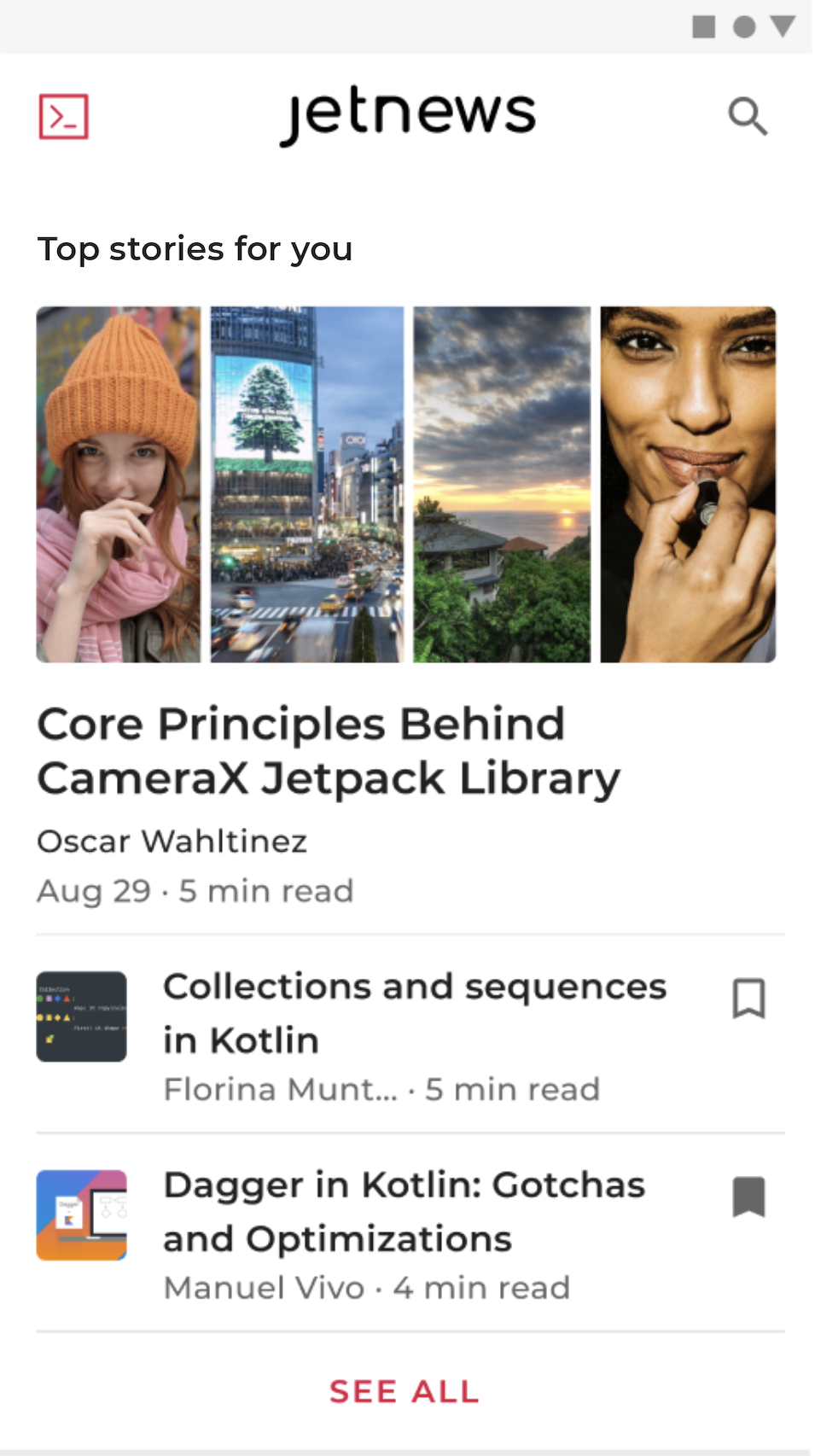
The following sections use this example as a case study to introduce the principles of unidirectional data flow, as well as illustrating the problems that these principles help solve in the context of app architecture for the UI layer.
UI layer architecture
The term UI refers to UI elements such as containers and composable functions that display data. For building Android UIs, Jetpack Compose is the recommended toolkit. Because the role of the data layer is to hold, manage, and provide access to the app data, the UI layer must perform the following steps:
- Consume app data and transform it into data the UI can easily render.
- Consume UI-renderable data and transform it into UI elements for presentation to the user.
- Consume user input events from those assembled UI elements and reflect their effects in the UI data as needed.
- Repeat steps 1 through 3 for as long as necessary.
The rest of this guide demonstrates how to implement a UI layer that performs these steps. In particular, this guide covers the following tasks and concepts:
- How to define the UI state
- Unidirectional data flow (UDF) as a means of producing and managing the UI state
- How to expose UI state with observable data types according to UDF principles
- How to implement a UI that consumes the observable UI state
The most fundamental of these is the definition of the UI state.
Define UI state
In the case study outlined earlier, the UI shows a list of articles along with some metadata for each article. This information that the app presents to the user is the UI state.
In other words, if the UI is what the user sees, the UI state is what the app says they should see. Like two sides of the same coin, the UI is the visual representation of the UI state. Any changes to the UI state are immediately reflected in the UI.

Consider the case study: to fulfill the News app's requirements, the
information required to fully render the UI can be encapsulated in a
NewsUiState data class defined as follows:
data class NewsUiState(
    val isSignedIn: Boolean = false,
    val isPremium: Boolean = false,
    val newsItems: List<NewsItemUiState> = listOf(),
    val userMessages: List<Message> = listOf()
)

data class NewsItemUiState(
    val title: String,
    val body: String,
    val bookmarked: Boolean = false,
    ...
)
For more information on UI state, see State and Jetpack Compose.
Immutability
The UI state definition in the previous example is immutable. The key benefit of this is that immutable objects provide guarantees regarding the state of the application at an instant in time. This frees up the UI to focus on its primary role: to read the state and update its UI elements accordingly. Never modify the UI state in the UI directly unless the UI itself is the sole source of its data. Violating this principle results in multiple sources of truth for the same piece of information, leading to data inconsistencies and subtle bugs.
For example, consider the earlier case study.
If the bookmarked flag in a NewsItemUiState object from the UI
state is updated in the Activity class, that flag
competes with the data layer as the source of the bookmarked status of an
article. Immutable data classes are very useful for preventing this kind of
inconsistency.
Naming conventions in this guide
In this guide, UI state classes are named based on the functionality of the screen or part of the screen they describe. The convention is as follows:
functionality + UiState.
For example, the state of a screen displaying news might be called
NewsUiState, and the state of a news item in a list of news items might be a
NewsItemUiState.
Manage state with Unidirectional Data Flow
The previous section established that the UI state is an immutable snapshot of the details needed for the UI to render. However, the dynamic nature of data in apps means that state can change over time. This might be due to user interaction or other events that modify the underlying data that is used to populate the app.
These interactions can benefit from a mediator to process them, defining the logic to be applied to each event and transforming the backing data sources to create UI state. Although these interactions and their logic can be housed in the UI itself, this can quickly get unwieldy as the UI takes on too much responsibility. Furthermore, this can affect testability because the resulting code is tightly coupled. Unless the UI state is very simple, make sure the UI's sole responsibility is to consume and display UI state.
This section discusses Unidirectional Data Flow (UDF), an architecture pattern that helps enforce this healthy separation of responsibility.
State holders
State holders are the classes responsible for producing UI state and for the logic needed to produce that state. State holders come in various sizes depending on the scope of the corresponding UI elements that they manage, ranging from a single widget like a bottom app bar to a whole screen or a navigation destination.
In the latter case, the typical implementation is an instance of a
ViewModel, although depending on the
requirements of the application, a simple class might suffice. The News app from
the case study, for example, uses a NewsViewModel class as a
state holder to produce the UI state for the screen displayed in that section.
There are many ways to model the codependency between the UI and its state
producer. However, because the interaction between the UI and its ViewModel
class can largely be understood as event input and its ensuing state output,
the relationship can be represented as shown in the following diagram:
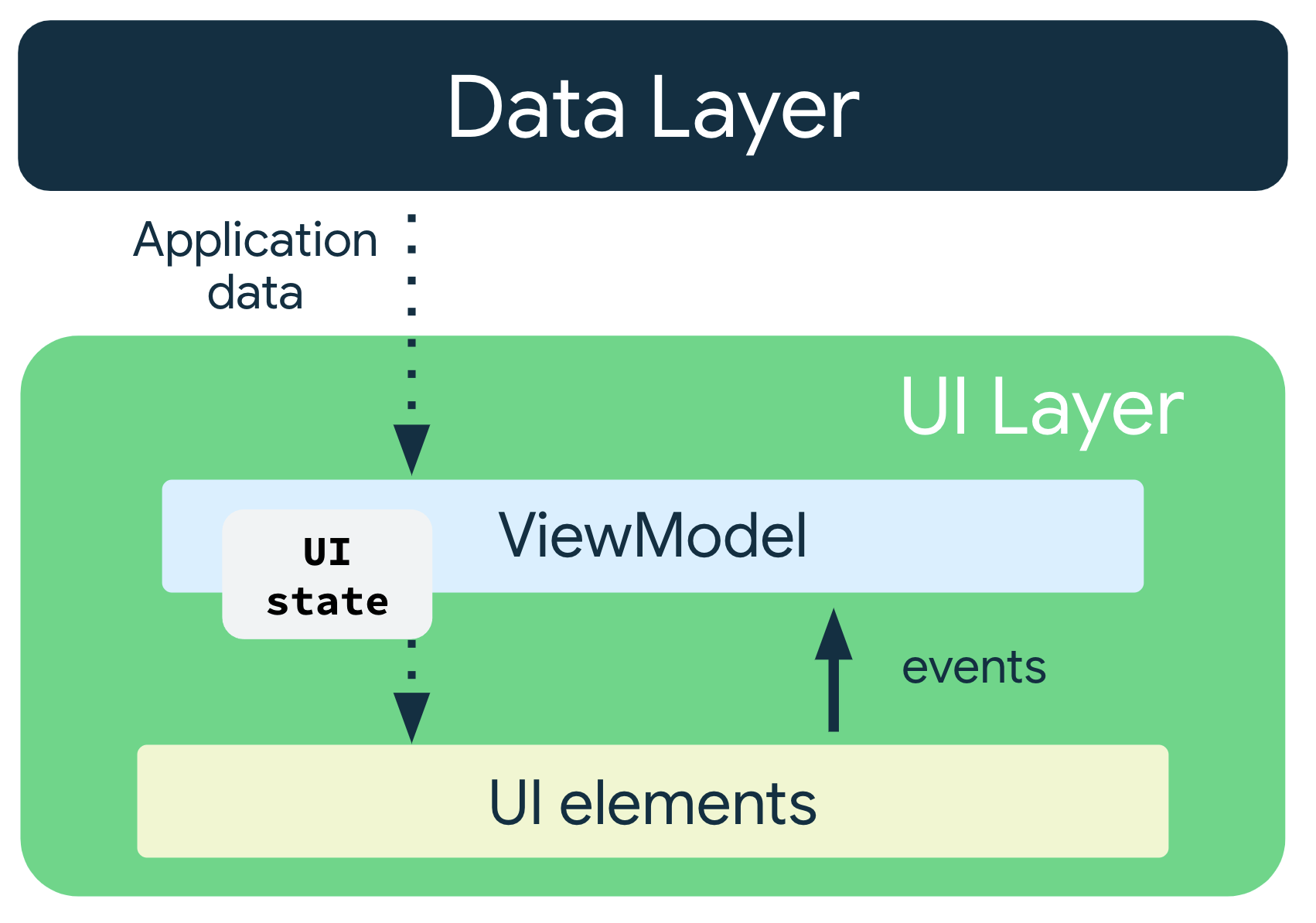
The pattern where the state flows down and the events flow up is called a unidirectional data flow (UDF). The implications of this pattern for app architecture are as follows:
- The ViewModel holds and exposes the state to be consumed by the UI. The UI state is application data transformed by the ViewModel.
- The UI notifies the ViewModel of user events.
- The ViewModel handles the user actions and updates the state.
- The updated state is fed back to the UI to render.
- The above is repeated for any event that causes a mutation of state.
For navigation destinations or screens, the ViewModel works with repositories or use case classes to get data and transform it into the UI state while incorporating the effects of events that may cause mutations of the state. The case study mentioned earlier contains a list of articles, each having a title, description, source, author name, publication date, and whether it was bookmarked. The UI for each article item looks like this:

A user requesting to bookmark an article is an example of an event that can cause state mutations. As the state producer, it's the ViewModel's responsibility to define all the logic required to populate all fields in the UI state and process the events needed for the UI to render fully.
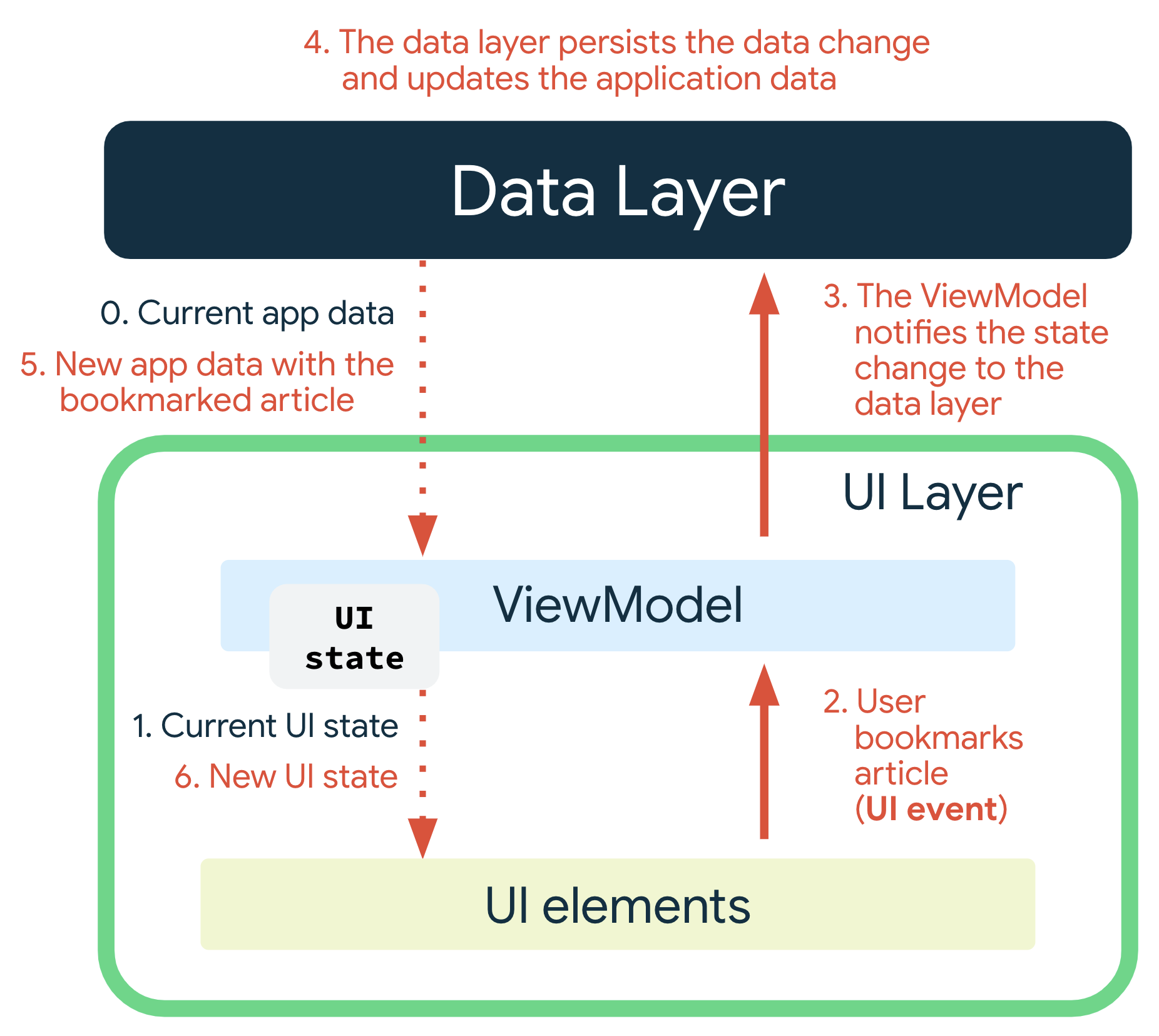
The following sections take a closer look at the events that cause state changes and how they can be processed using UDF.
Types of logic
Bookmarking an article is an example of business logic because it gives value to your app. To learn more about this, see the data layer page. However, there are different types of logic that are important to define:
- Business logic is the implementation of product requirements for app data. As mentioned already, one example is bookmarking an article in the case study app. Business logic is usually placed in the domain or data layers, but never in the UI layer.
- UI behavior logic or UI logic is how to display state changes on
the screen. Examples include obtaining the right text to show on the screen
using Android
Resources, navigating to a particular screen when the user clicks a button, or displaying a user message on the screen using a toast or a snackbar.
Keep UI logic in the UI, not in the ViewModel, particularly when it involves
UI types like Context.
If the UI grows in complexity and you want to delegate the UI
logic to another class to favor testability and separation of concerns, you
can create a simple class as a state holder. Simple classes created in the UI
can take Android SDK dependencies because they follow the lifecycle of the UI;
ViewModel objects have a longer lifespan.
For more information about state holders and how they fit into the context of helping build UI, see the Jetpack Compose State guide.
Why use UDF?
UDF models the cycle of state production as shown in Figure 4. It also separates the place where state changes originate, the place where they are transformed, and the place where they are finally consumed. This separation lets the UI do exactly what its name implies: display information by observing state changes, and relay user intent by passing those changes on to the ViewModel.
In other words, UDF allows for the following:
- Data consistency. There is a single source of truth for the UI.
- Testability. The source of state is isolated and therefore testable independent of the UI.
- Maintainability. Mutation of state follows a well-defined pattern where mutations are a result of both user events and the sources of data they pull from.
Expose UI state
After you define your UI state and determine how you will manage the production of that state, the next step is to present the produced state to the UI.
When using UDF to manage the production of state, you can consider the
produced state to be a stream—in other words, multiple versions of the state
are produced over time. Expose the UI state in an
observable data holder like StateFlow. This lets the UI react to any changes
made in the state without having to manually pull data directly from the
ViewModel. This also has the
benefit of always having the latest version of the UI state cached, which is
useful for quick state restoration after configuration changes.
class NewsViewModel(...) : ViewModel() {

    val uiState: NewsUiState = …
}
For an introduction to Kotlin flows, see Kotlin flows on Android.
To learn how to use StateFlow as an observable data holder,
see the
Advanced State and Side Effects in Jetpack Compose codelab.
In cases where the data exposed to the UI is relatively simple, it's often worth wrapping the data in a UI state type because it conveys the relationship between the emission of the state holder and its associated screen or UI element. As the UI element grows more complex, it's straightforward to add to the definition of the UI state, so you can accommodate the extra information needed to render the UI element.
A common way of creating a stream of UiState is by exposing a mutableStateOf
property with a private set, keeping the state mutable inside the ViewModel
but read-only for the UI.
class NewsViewModel(...) : ViewModel() {

    var uiState by mutableStateOf(NewsUiState())
        private set

    ...
}
The ViewModel can then expose methods that internally mutate the state,
publishing updates for the UI to consume. Take, for example, the case where
you need to perform an asynchronous action.
You can launch a coroutine using the viewModelScope,
and then update the mutable state upon completion.
class NewsViewModel(
    private val repository: NewsRepository,
    ...
) : ViewModel() {

    var uiState by mutableStateOf(NewsUiState())
        private set

    private var fetchJob: Job? = null

    fun fetchArticles(category: String) {
        fetchJob?.cancel()
        fetchJob = viewModelScope.launch {
            try {
                val newsItems = repository.newsItemsForCategory(category)
                uiState = uiState.copy(newsItems = newsItems)
            } catch (ioe: IOException) {
                // Handle the error and notify the UI when appropriate.
                val messages = getMessagesFromThrowable(ioe)
                uiState = uiState.copy(userMessages = messages)
            }
        }
    }
}
In the preceding example, the NewsViewModel class attempts to fetch articles
for a certain category and then reflects the result of the attempt—whether
success or
failure—in the UI state, where the UI can react to it appropriately.
For more information about error handling, see the
Show errors on the screen section.
Additional considerations
In addition to the previous guidance, consider the following when exposing UI state:
Use a single UI state object to handle states that are related to each other. This leads to fewer inconsistencies and it makes the code easier to understand. If you expose the list of news items and the number of bookmarks in two different streams, you might end up in a situation where one was updated and the other was not. When you use a single stream, both elements are kept up to date. Furthermore, some business logic may require a combination of sources. For example, you might need to show a bookmark button only if the user is signed in and that user is a subscriber to a premium news service. You can define a UI state class as follows:
data class NewsUiState(
    val isSignedIn: Boolean = false,
    val isPremium: Boolean = false,
    val newsItems: List<NewsItemUiState> = listOf()
)

val NewsUiState.canBookmarkNews: Boolean get() = isSignedIn && isPremium
In this declaration, the visibility of the bookmark button is a derived property of two other properties. As business logic gets more complex, having a singular
UiStateclass where all properties are immediately available becomes increasingly important.UI states: single stream or multiple streams? The key guiding principle for choosing between exposing UI state in a single stream or in multiple streams is the relationship between the items emitted. The biggest advantages of a single-stream exposure are convenience and data consistency: consumers of state always have the latest information available at any given time. However, there are instances where separate streams of state from the ViewModel might be appropriate:
Unrelated data types: Some states that are needed to render the UI might be completely independent from each other. In such cases, the costs of bundling these disparate states together might outweigh the benefits, especially if one of these states updates more frequently than the other.
UiStatediffing: The more fields there are in aUiStateobject, the more likely it is that the stream emits as a result of one of its fields being updated. Because UI elements don't have a diffing mechanism to understand whether consecutive emissions are different or the same, every emission causes an update to the UI element. This means that mitigation usingFlowAPI methods likedistinctUntilChanged()might be necessary.
For more information about rendering and the UI state, see Lifecycle of composables.
Consume UI state
To consume the stream of UiState objects in the UI, use the terminal
operator for the observable data type that you're using. For example,
for Kotlin flows use the collect() method or its variations.
When consuming observable data holders in the UI, make sure to consider the
lifecycle of the UI. Don't make the UI observe the UI state when the composable
isn't being displayed to the user. To learn more about this topic, see this
blog post. When using flows, it's best to handle lifecycle concerns with
the appropriate coroutine scope and the collectAsStateWithLifecycle API:
@Composable private fun ConversationScreen( conversationViewModel: ConversationViewModel = viewModel() ) { val messages by conversationViewModel.messages.collectAsStateWithLifecycle() ConversationScreen( messages = messages, onSendMessage = { message: Message -> conversationViewModel.sendMessage(message) } ) } @Composable private fun ConversationScreen( messages: List<Message>, onSendMessage: (Message) -> Unit ) { MessagesList(messages, onSendMessage) /* ... */ }
Show in-progress operations
A simple way to represent loading states in a UiState class is with a
boolean field:
data class NewsUiState(
    val isFetchingArticles: Boolean = false,
    ...
)
This flag's value represents the presence or absence of a progress bar in the UI.
@Composable
fun LatestNewsScreen(
    modifier: Modifier = Modifier,
    viewModel: NewsViewModel = viewModel()
) {
    Box(modifier.fillMaxSize()) {

        if (viewModel.uiState.isFetchingArticles) {
            CircularProgressIndicator(Modifier.align(Alignment.Center))
        }

        // Add other UI elements. For example, the list.
    }
}
Show errors on the screen
Showing errors in the UI is similar to showing in-progress operations because they are both easily represented by boolean values that denote their presence or absence. However, errors might also include an associated message to relay back to the user, or an action associated with them that retries the failed operation. Therefore, while an in-progress operation is either loading or not loading, error states might need to be modeled with data classes that host the metadata appropriate for the context of the error.
Consider the previous example that showed a progress bar while fetching articles. If this operation results in an error, you might want to display one or more messages to the user detailing what went wrong.
data class Message(val id: Long, val message: String)

data class NewsUiState(
    val userMessages: List<Message> = listOf(),
    ...
)
You might then present the error messages to the user in the form of UI elements like snackbars. For more information on how UI events are produced and consumed, see UI events.
Threading and concurrency
Make sure all work performed in a ViewModel is main-safe—safe to call from the main thread. The data and domain layers are responsible for moving work to a different thread.
If a ViewModel performs long-running operations, then it is also responsible for moving that logic to a background thread. Kotlin coroutines are a great way to manage concurrent operations, and the Jetpack Architecture Components provide built-in support for them. To learn more about using coroutines in Android apps, see Kotlin coroutines on Android.
Navigation
Changes in app navigation are often driven by event-like emissions. For example,
after a SignInViewModel class performs a sign-in, the UiState might have an
isSignedIn field set to true. Consume triggers like these just
like the ones covered in the earlier Consume UI state section,
but defer the consumption implementation to the Navigation component.
For more information about UI navigation, see Navigation 3.
Paging
The Paging library is
consumed in the UI with a type called PagingData. Because PagingData
represents and contains items that can change over time—in other words, it is
not an immutable type—do not represent it in an immutable UI state.
Instead, expose it from the ViewModel independently in its own
stream.
The following example shows the Paging library's Compose API:
@Composable fun MyScreen(flow: Flow<PagingData<String>>) { val lazyPagingItems = flow.collectAsLazyPagingItems() LazyColumn { items( lazyPagingItems.itemCount, key = lazyPagingItems.itemKey { it } ) { index -> val item = lazyPagingItems[index] Text("Item is $item") } } }
Animations
In order to provide smooth top-level navigation transitions, you might want to wait for the second screen to load data before starting the animation.
For more information on navigation transitions, see Navigation 3 and Shared element transitions in Compose.
Additional resources
Views content
Samples
The following Google samples demonstrate the use of the UI layer. Go explore them to see this guidance in practice:
Recommended for you
- Note: link text is displayed when JavaScript is off
- UI State production
- State holders and UI State {:#mad-arch}
- Guide to app architecture