
Controllers have two kinds of actions:
KeyEventused for any button with a binary state of "on" and "off"MotionEventused for any axis that returns a range of values. Such as -1 to 1 for analog sticks or 0 to 1 for analog triggers.
You can read these inputs from the View that has focus.
onGenericMotionEventis raised for anyMotionEvent.onKeyDownandonKeyUpare raised forKeyEventwhen buttons are pressed and released.
Kotlin
override fun onKeyDown(keyCode: Int, event: KeyEvent): Boolean {
  if (event.isFromSource(SOURCE_GAMEPAD)
      && event.repeatCount == 0
  ) {
      Log.d("GameView", "Gamepad key pressed: $keyCode")
      return true
  }

  return super.onKeyDown(keyCode, event)
}

override fun onGenericMotionEvent(event: MotionEvent): Boolean {
  if (event.isFromSource(SOURCE_JOYSTICK)) {
      Log.d("GameView", "Gamepad event: $event")
      return true
  }

  return super.onGenericMotionEvent(event)
}
Java
@Override
public boolean onKeyDown(int keyCode, KeyEvent event) {
  if (event.isFromSource(SOURCE_GAMEPAD)
          && event.getRepeatCount() == 0
  ) {
      Log.d("GameView", "Gamepad key pressed: " + keyCode);
      return true;
  }

  return super.onKeyDown(keyCode, event);
}

@Override
public boolean onGenericMotionEvent(MotionEvent event) {
  if (event.isFromSource(SOURCE_JOYSTICK)) {
      Log.d("GameView", "Gamepad event: " + event);
      return true;
  }
  return super.onGenericMotionEvent(event);
}
If needed, you can read events from the Activity directly instead.
dispatchGenericMotionEventis raised for anyMotionEventdispatchKeyEvent. is raised for anyKeyEvent.
Verify a game controller is connected
When reporting input events, Android will reuse the same key or axis ids for
different input device types. For example, a touchscreen action generates an
AXIS_X event that represents the X
coordinate of the touch surface, but a gamepad generates an
AXIS_X event that represents the X
position of the left stick. This means that you must check the source type to
properly interpret input events.
To verify that a connected InputDevice is a game controller, use the
supportsSource(int) function:
- A source type of
SOURCE_GAMEPADindicates that the input device has controller buttons (for example,KEYCODE_BUTTON_A). Note that this source type does not strictly indicate if the game controller has D-pad buttons, although most controllers typically have directional controls. - A source type of
SOURCE_DPADindicates that the input device has D-pad buttons (for example,DPAD_UP). - A source type of
SOURCE_JOYSTICKindicates that the input device has analog control sticks (for example, a joystick that records movements alongAXIS_XandAXIS_Y).
The following code snippet shows a helper method that lets you check whether the connected input devices are game controllers. If so, the method retrieves the device IDs for the game controllers. You can then associate each device ID with a player in your game, and process game actions for each connected player separately. To learn more about supporting multiple game controllers that are simultaneously connected on the same Android-powered device, see Support multiple game controllers.
Kotlin
fun getGameControllerIds(): List<Int> {
  val gameControllerDeviceIds = mutableListOf<Int>()
  val deviceIds = InputDevice.getDeviceIds()
  deviceIds.forEach { deviceId ->
      InputDevice.getDevice(deviceId)?.apply {

          // Verify that the device has gamepad buttons, control sticks, or both.
          if (supportsSource(SOURCE_GAMEPAD)
              || supportsSource(SOURCE_JOYSTICK)) {
              // This device is a game controller. Store its device ID.
              gameControllerDeviceIds
                  .takeIf { !it.contains(deviceId) }
                  ?.add(deviceId)
          }
      }
  }
  return gameControllerDeviceIds
}
Java
 public ArrayList<Integer> getGameControllerIds() {
  ArrayList<Integer> gameControllerDeviceIds = new ArrayList<Integer>();
  int[] deviceIds = InputDevice.getDeviceIds();
  for (int deviceId : deviceIds) {
      InputDevice dev = InputDevice.getDevice(deviceId);

      if (dev == null) {
          continue;
      }

      // Verify that the device has gamepad buttons, control sticks, or both.
      if (dev.supportsSource(SOURCE_GAMEPAD) || dev.supportsSource(SOURCE_JOYSTICK)) {
          // This device is a game controller. Store its device ID.
          if (!gameControllerDeviceIds.contains(deviceId)) {
              gameControllerDeviceIds.add(deviceId);
          }
      }
  }
  return gameControllerDeviceIds;
}
Process controller inputs
This section describes the types for game controllers that are supported on Android.
C++ developers should use the Game Controller Library. It unifies all controllers to the most common subset of features and provides a consistent interface between them, including the ability to detect the button layout.
This figure shows what an Android game developer can expect a common controller to look like on Android.
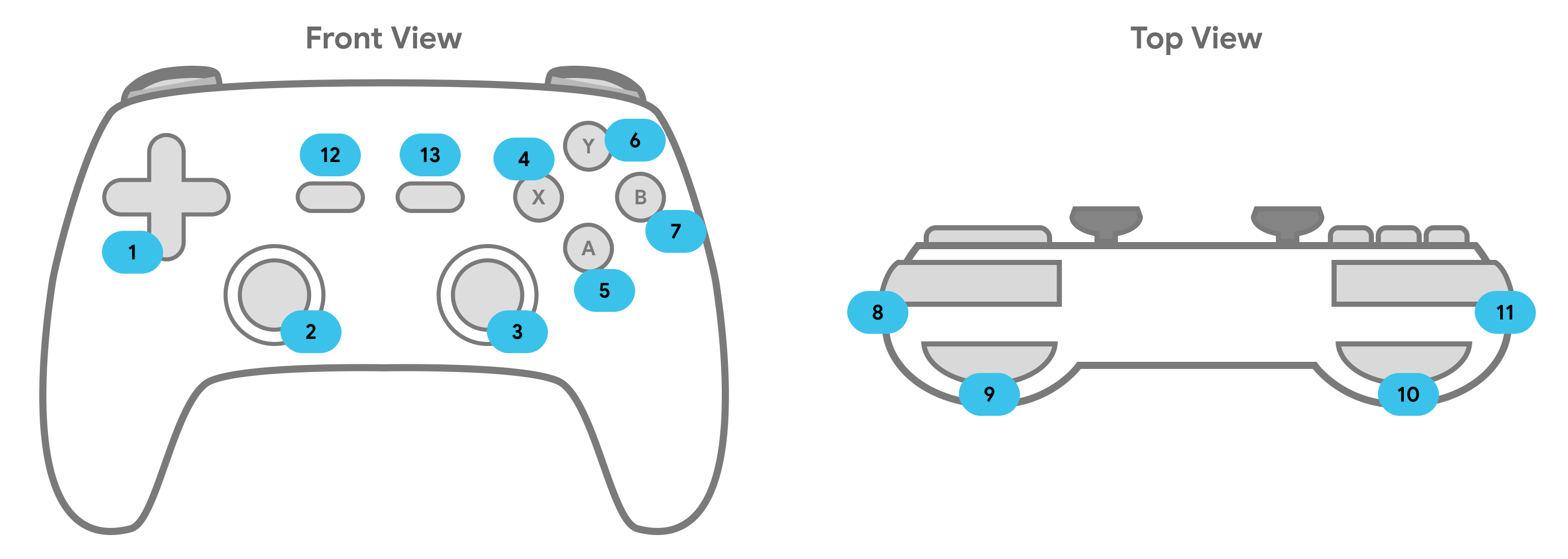
The table lists the standard event names and types for game controllers. For a
complete list of events, see Common variants. The system
sends MotionEvent events through onGenericMotionEvent and KeyEvent events
through onKeyDown and onKeyUp.
| Controller Input | KeyEvent | MotionEvent |
|---|---|---|
| 1. D-Pad |
AXIS_HAT_X(horizontal input) AXIS_HAT_Y(vertical input) |
|
| 2. Left Analog Stick |
KEYCODE_BUTTON_THUMBL(when pressed in) |
AXIS_X(horizontal movement) AXIS_Y(vertical movement) |
| 3. Right Analog Stick |
KEYCODE_BUTTON_THUMBR(when pressed in) |
AXIS_Z(horizontal movement) AXIS_RZ(vertical movement) |
| 4. X Button | KEYCODE_BUTTON_X |
|
| 5. A Button | KEYCODE_BUTTON_A |
|
| 6. Y Button | KEYCODE_BUTTON_Y |
|
| 7. B Button | KEYCODE_BUTTON_B |
|
| 8. Right Bumper |
KEYCODE_BUTTON_R1 |
|
| 9. Right Trigger |
AXIS_RTRIGGER |
|
| 10. Left Trigger | AXIS_LTRIGGER |
|
| 11. Left Bumper | KEYCODE_BUTTON_L1 |
|
| 12. Start | KEYCODE_BUTTON_START |
|
| 13. Select | KEYCODE_BUTTON_SELECT |
Handle button presses
Since Android reports controller button presses identically to keyboard button presses, you need to:
- Validate that the event is coming from a
SOURCE_GAMEPAD. - Make sure you only receive the button once with
KeyEvent.getRepeatCount(), Android will send repeat key events just like if you held down a keyboard key. - Indicate that an event is handled by returning
true. Pass unhandled events to
superto verify that Android's various compatibility layers function appropriately.Kotlin
class GameView : View {
// ...
override fun onKeyDown(keyCode: Int, event: KeyEvent): Boolean {
    event.apply {
        var handled = false

        // make sure we're handling gamepad events
        if (isFromSource(SOURCE_GAMEPAD)) {

            // avoid processing the keycode repeatedly
            if (repeatCount == 0) {
                when (keyCode) {
                    // handle the "A" button
                    KEYCODE_BUTTON_A -> {
                      handled = true
                    }
                }
                // ...
            }
        }
        if (handled) {
            return true
        }
   }
   return super.onKeyDown(keyCode, event)
  }
}
Java
public class GameView extends View {
// ...

@Override
public boolean onKeyDown(int keyCode, KeyEvent event) {
    boolean handled = false;
    // make sure we're handling gamepad events
    if (event.isFromSource(SOURCE_GAMEPAD)) {
        // avoid processing the keycode repeatedly
        if (event.getRepeatCount() == 0) {
            switch (keyCode) {
                case KEYCODE_BUTTON_A:
                    // handle the "A" button
                    handled = true;
                    break;
                // ...
            }
        }
        // mark this event as handled
        if (handled) {
            return true;
        }
    }
    // Always do this instead of "return false"
    // it allows Android's input compatibility layers to work
    return super.onKeyDown(keyCode, event);
  }
}
Process directional pad input
The 4-way directional pad, or D-pad, is a common physical control in many game
controllers. Android reports D-pad UP and DOWN presses as AXIS_HAT_Y events,
with -1.0 indicating up and 1.0 indicating down. It reports D-pad LEFT or RIGHT
presses as AXIS_HAT_X events, with -1.0 indicating left and 1.0 indicating
right.
Some controllers instead report D-pad presses with a key code. If your game cares about D-pad presses, you should treat the hat axis events and the D-pad key codes as the same input events, as recommended in table 2.
Table 2. Recommended default game actions for D-pad key codes and hat axis values.
| Game Action | D-pad Key Code | Hat Axis Code |
|---|---|---|
| Move Up | KEYCODE_DPAD_UP |
AXIS_HAT_Y (for values 0 to -1.0) |
| Move Down | KEYCODE_DPAD_DOWN |
AXIS_HAT_Y (for values 0 to 1.0) |
| Move Left | KEYCODE_DPAD_LEFT |
AXIS_HAT_X (for values 0 to -1.0) |
| Move Right | KEYCODE_DPAD_RIGHT |
AXIS_HAT_X (for values 0 to 1.0) |
The following code snippet shows a helper class that lets you check the hat axis and key code values from an input event to determine the D-pad direction.
Kotlin
class Dpad {

    private var directionPressed = -1 // initialized to -1

    fun getDirectionPressed(event: InputEvent): Int {
        if (!isDpadDevice(event)) {
            return -1
        }

        // If the input event is a MotionEvent, check its hat axis values.
        (event as? MotionEvent)?.apply {

            // Use the hat axis value to find the D-pad direction
            val xaxis: Float = event.getAxisValue(MotionEvent.AXIS_HAT_X)
            val yaxis: Float = event.getAxisValue(MotionEvent.AXIS_HAT_Y)

            directionPressed = when {
                // Check if the AXIS_HAT_X value is -1 or 1, and set the D-pad
                // LEFT and RIGHT direction accordingly.
                xaxis.compareTo(-1.0f) == 0 -> Dpad.LEFT
                xaxis.compareTo(1.0f) == 0 -> Dpad.RIGHT
                // Check if the AXIS_HAT_Y value is -1 or 1, and set the D-pad
                // UP and DOWN direction accordingly.
                yaxis.compareTo(-1.0f) == 0 -> Dpad.UP
                yaxis.compareTo(1.0f) == 0 -> Dpad.DOWN
                else -> directionPressed
            }
        }
        // If the input event is a KeyEvent, check its key code.
        (event as? KeyEvent)?.apply {

            // Use the key code to find the D-pad direction.
            directionPressed = when(event.keyCode) {
                KeyEvent.KEYCODE_DPAD_LEFT -> Dpad.LEFT
                KeyEvent.KEYCODE_DPAD_RIGHT -> Dpad.RIGHT
                KeyEvent.KEYCODE_DPAD_UP -> Dpad.UP
                KeyEvent.KEYCODE_DPAD_DOWN -> Dpad.DOWN
                KeyEvent.KEYCODE_DPAD_CENTER ->  Dpad.CENTER
                else -> directionPressed
            }
        }
        return directionPressed
    }

    companion object {
        internal const val UP = 0
        internal const val LEFT = 1
        internal const val RIGHT = 2
        internal const val DOWN = 3
        internal const val CENTER = 4

        fun isDpadDevice(event: InputEvent): Boolean =
            // Check that input comes from a device with directional pads.
            return event.isFromSource(InputDevice.SOURCE_DPAD)
    }
}
Java
public class Dpad {
    final static int UP       = 0;
    final static int LEFT     = 1;
    final static int RIGHT    = 2;
    final static int DOWN     = 3;
    final static int CENTER   = 4;

    int directionPressed = -1; // initialized to -1

    public int getDirectionPressed(InputEvent event) {
        if (!isDpadDevice(event)) {
           return -1;
        }

        // If the input event is a MotionEvent, check its hat axis values.
        if (event instanceof MotionEvent) {

            // Use the hat axis value to find the D-pad direction
            MotionEvent motionEvent = (MotionEvent) event;
            float xaxis = motionEvent.getAxisValue(MotionEvent.AXIS_HAT_X);
            float yaxis = motionEvent.getAxisValue(MotionEvent.AXIS_HAT_Y);

            // Check if the AXIS_HAT_X value is -1 or 1, and set the D-pad
            // LEFT and RIGHT direction accordingly.
            if (Float.compare(xaxis, -1.0f) == 0) {
                directionPressed =  Dpad.LEFT;
            } else if (Float.compare(xaxis, 1.0f) == 0) {
                directionPressed =  Dpad.RIGHT;
            }
            // Check if the AXIS_HAT_Y value is -1 or 1, and set the D-pad
            // UP and DOWN direction accordingly.
            else if (Float.compare(yaxis, -1.0f) == 0) {
                directionPressed =  Dpad.UP;
            } else if (Float.compare(yaxis, 1.0f) == 0) {
                directionPressed =  Dpad.DOWN;
            }
        }

        // If the input event is a KeyEvent, check its key code.
        else if (event instanceof KeyEvent) {

           // Use the key code to find the D-pad direction.
            KeyEvent keyEvent = (KeyEvent) event;
            if (keyEvent.getKeyCode() == KeyEvent.KEYCODE_DPAD_LEFT) {
                directionPressed = Dpad.LEFT;
            } else if (keyEvent.getKeyCode() == KeyEvent.KEYCODE_DPAD_RIGHT) {
                directionPressed = Dpad.RIGHT;
            } else if (keyEvent.getKeyCode() == KeyEvent.KEYCODE_DPAD_UP) {
                directionPressed = Dpad.UP;
            } else if (keyEvent.getKeyCode() == KeyEvent.KEYCODE_DPAD_DOWN) {
                directionPressed = Dpad.DOWN;
            } else if (keyEvent.getKeyCode() == KeyEvent.KEYCODE_DPAD_CENTER) {
                directionPressed = Dpad.CENTER;
            }
        }
        return directionPressed;
    }

    public static boolean isDpadDevice(InputEvent event) {
        // Check that input comes from a device with directional pads.
        return event.isFromSource(InputDevice.SOURCE_DPAD);
     }
}
You can use this helper class in your game wherever you want to process D-pad
input (for example, in the
onGenericMotionEvent()
or
onKeyDown()
callbacks).
For example:
Kotlin
private val dpad = Dpad()
...
override fun onGenericMotionEvent(event: MotionEvent): Boolean {
    if (Dpad.isDpadDevice(event)) {
        when (dpad.getDirectionPressed(event)) {
            Dpad.LEFT -> {
                // Do something for LEFT direction press
                ...
                return true
            }
            Dpad.RIGHT -> {
                // Do something for RIGHT direction press
                ...
                return true
            }
            Dpad.UP -> {
                // Do something for UP direction press
                ...
                return true
            }
            ...
        }
    }

    // Check if this event is from a joystick movement and process accordingly.
    ...
}
Java
Dpad dpad = new Dpad();
...
@Override
public boolean onGenericMotionEvent(MotionEvent event) {

    // Check if this event if from a D-pad and process accordingly.
    if (Dpad.isDpadDevice(event)) {

       int press = dpad.getDirectionPressed(event);
       switch (press) {
            case LEFT:
                // Do something for LEFT direction press
                ...
                return true;
            case RIGHT:
                // Do something for RIGHT direction press
                ...
                return true;
            case UP:
                // Do something for UP direction press
                ...
                return true;
            ...
        }
    }

    // Check if this event is from a joystick movement and process accordingly.
    ...
}
Process joystick movements
When players move a joystick on their game controllers, Android reports a
MotionEvent that contains the
ACTION_MOVE action
code and the updated positions of the joystick's axes. Your game can use the
data provided by the MotionEvent
to determine if a joystick movement it cares about happened.
Note that joystick motion events may batch multiple movement samples together
within a single object. The
MotionEvent object contains the
current position for each joystick axis as well as multiple historical positions
for each axis. When reporting motion events with action code
ACTION_MOVE (such as
joystick movements), Android batches up the axis values for efficiency. The
historical values for an axis consists of the set of distinct values older than
the current axis value, and more recent than values reported in any previous
motion events. See the MotionEvent
reference for details.
To accurately render a game object's movement based on joystick input, you can
use the historical information provided by MotionEvent objects.
You can retrieve current and historical values using the following methods:
getAxisValue()getHistoricalAxisValue()getHistorySize()(to find the number of historical points in the joystick event)
The following snippet shows how you might override the
onGenericMotionEvent()
callback to process joystick input. You should first process the historical
values for an axis, then process its current position.
Kotlin
class GameView(...) : View(...) {

    override fun onGenericMotionEvent(event: MotionEvent): Boolean {

        // Check that the event came from a game controller
        return