Miscellaneous Features
As the infomercials always say, "But wait, there’s more!" If simultaneous Clojure and ClojureScript REPLs, interactive programming, code completion, stacktrace navigation, test running, and debugging weren’t enough for you, CIDER delivers several additional features.
Using a Scratchpad
CIDER provides a simple way to create a Clojure scratchpad via the
M-x cider-scratch command. This is a great way to play
around with some code without having to create source files or pollute
the REPL buffer and is very similar to Emacs’s own *scratch* buffer.
Find References
| The functionality is based on ideas from this article and was introduced in CIDER 0.22. |
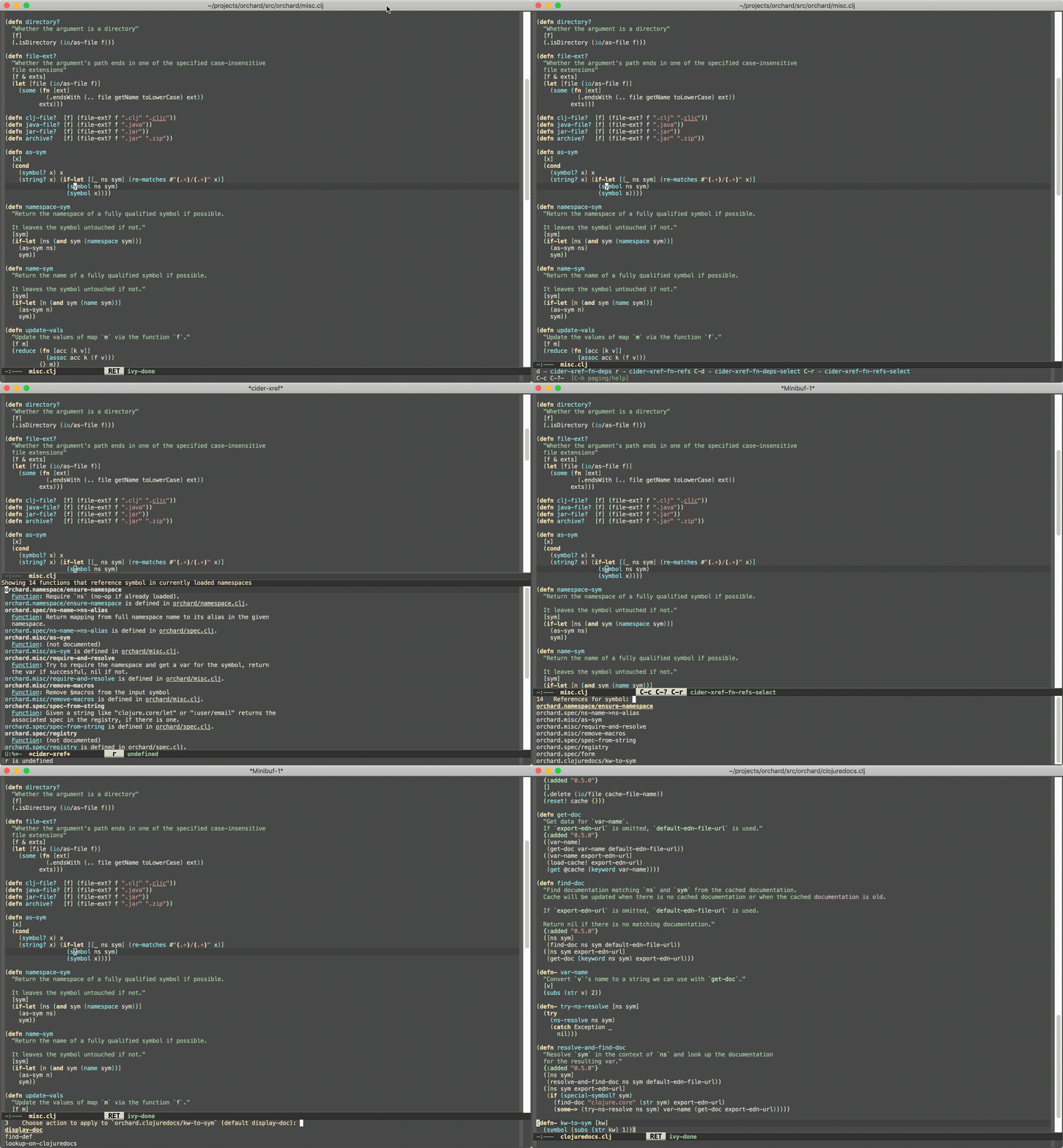
There are two ways to use find references in CIDER:
-
cider-xref-fn-refs(C-c C-? r) shows the usages of the function at point in a dedicated buffer -
cider-xref-fn-refs-select(C-c C-? C-r) shows the usages in the minibuffer
Here’s how they look in action:
Keep in mind the following limitations:
-
This works only for Clojure
-
It’s powered by runtime state analysis, which means it will show only data for loaded namespaces (like most of CIDER’s functionality)
-
It doesn’t (currently) find usages in lambdas
-
It doesn’t give us the precise locations where something is used, we only know that it’s used
On the bright side:
-
It’s super fast
-
It doesn’t require any static code analysis
-
It’s still more reliable than
grep
The functionality is not perfect, but at least it’s there if you need it. As a bonus you get a quick way to navigate to
all of the functions used by some function using cider-xref-fn-deps (C-c C-? d) and cider-xref-fn-deps-select (C-c C-? C-d).
Those are pretty handy if you don’t want to jump to the source of some function to see what functions it refers to (uses) internally.
Don’t forget you also have a couple of third-party alternative:
-
The much more sophisticated AST-powered "find usages" provided by
clj-refactor.el -
Projectile’s "grep in project" (
projectile-grep, typically bound to C-c p g)
CIDER Selector
The cider-selector (C-c M-s) command allows you to quickly navigate to
important buffers in the context of a Clojure project - e.g. the REPL, the
stacktrace buffer, the doc buffer, the most recently visited Clojure file, etc.
The usage of the command is extremely simple - after invoking it you need to type a
single key identifying the target buffer (e.g. r for the REPL).
|
One thing to keep in mind about the default keybinding C-c M-s is that it’s available only
in buffers where |
Here’s a list of all of cider-selector's keybindings:
| Keyboard shortcut | Description |
|---|---|
c |
Most recently visited Clojure buffer. |
e |
Most recently visited Emacs Lisp buffer. |
r |
Current REPL buffer or most recently visited REPL buffer. |
m |
|
x |
|
d |
|
s |
|
q |
Abort. |
? |
Show help. |
|
Any of those keys can be prefixed with a |
You can easily extend the selector with new commands using def-cider-selector-method:
(def-cider-selector-method ?z
  "CIDER foo buffer."
  cider-foo-buffer)
Browsing the Classpath
You can easily browse the items on your classpath with the command
M-x cider-classpath.
Here you can see it in action:
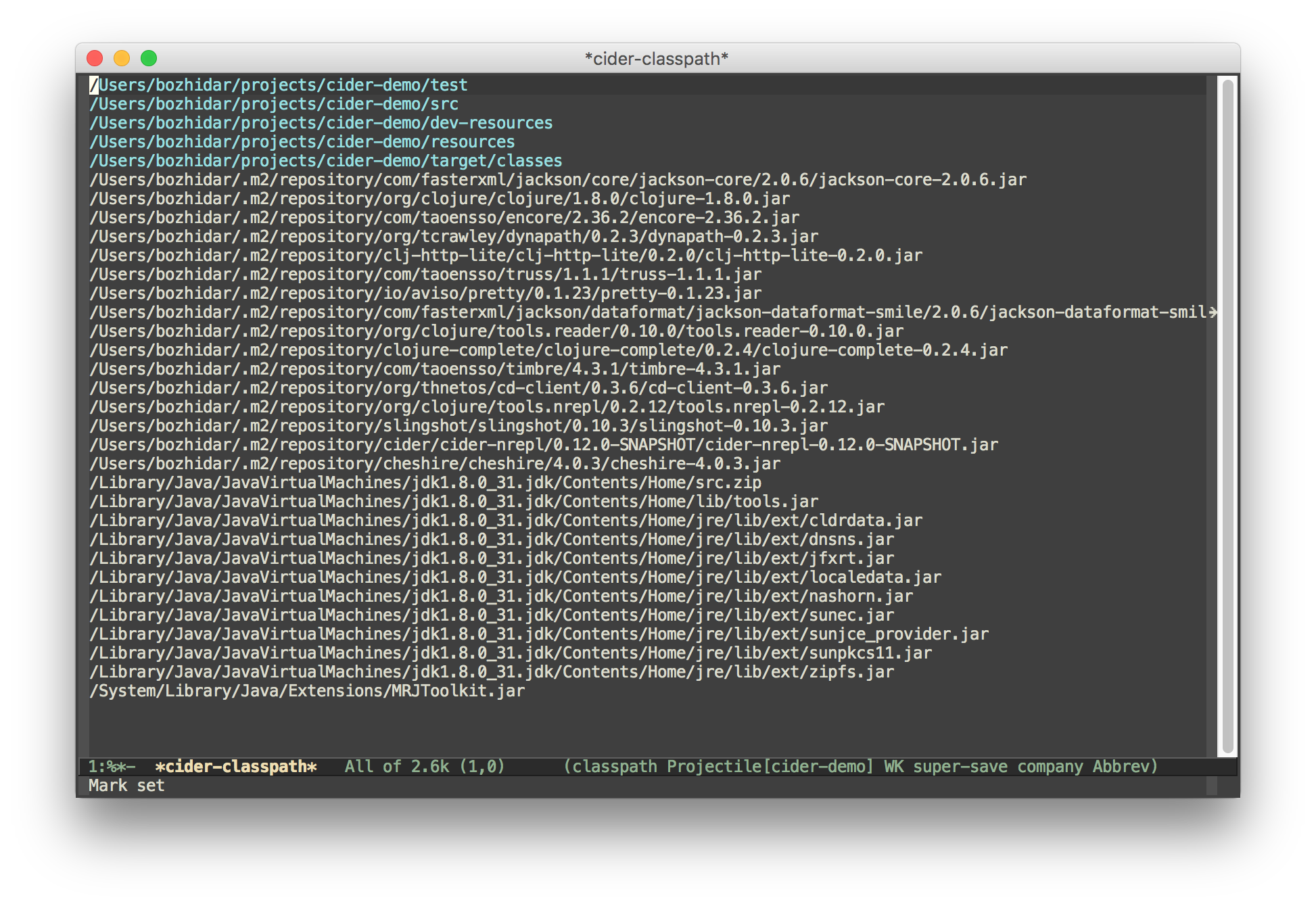
Press RET on a classpath entry to navigate into it.
Browsing Namespaces
You can browse the contents of any loaded namespace with the command
M-x cider-browse-ns. CIDER will prompt you for the namespace
to browse.
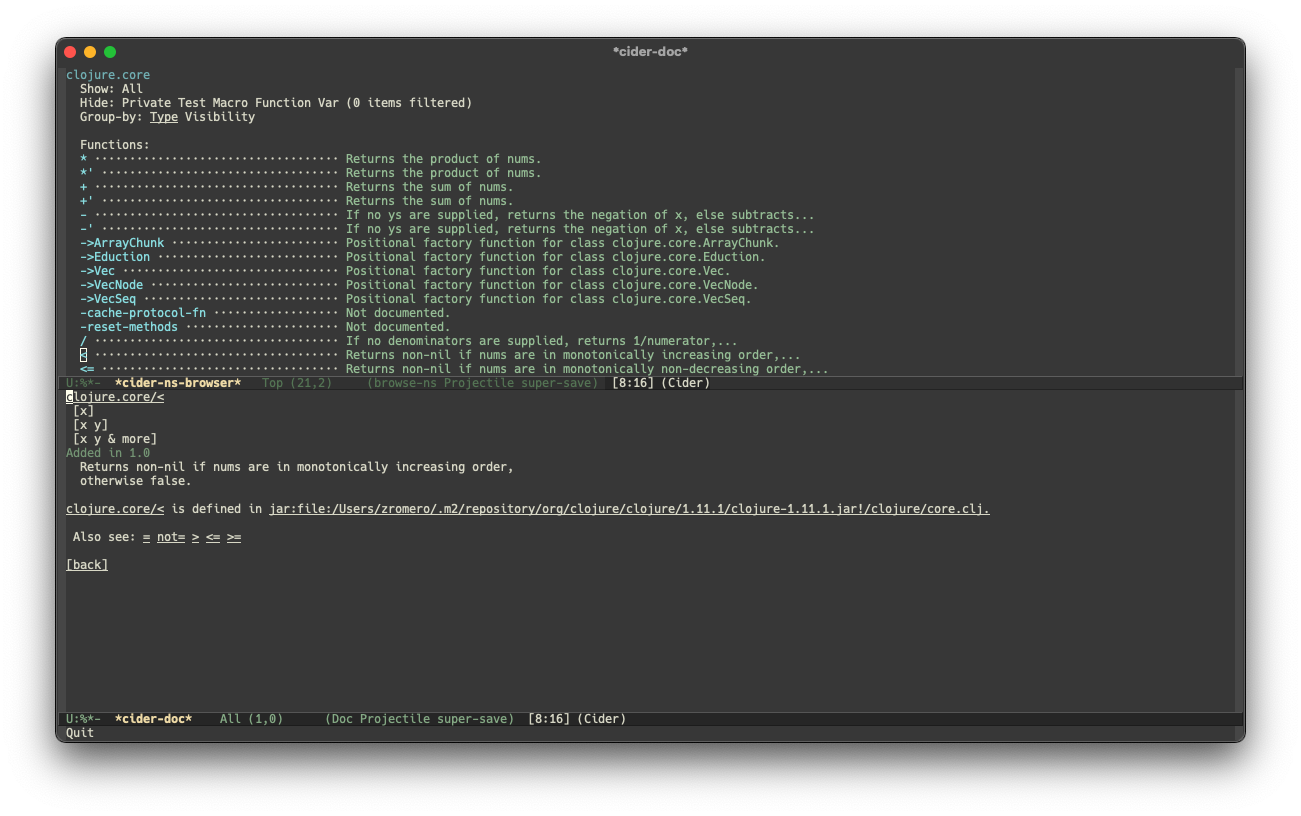
You can also browse all available namespaces with M-x
cider-browse-ns-all.
The UI contains buttons in the header which allow you to control how
the buffer is displayed (see below for keybindings). You may also
configure the cider-browse-ns-default-filters variable to a list of
the element types you want to be hidden by default.
There are a bunch of useful keybindings that are defined in browser buffers.
| Keyboard shortcut | Description |
|---|---|
d |
Display documentation for item at point. |
RET |
Browse ns or display documentation for item at point. |
s |
Go to definition for item at point. |
^ |
Browse all namespaces. |
n |
Go to next line. |
h p |
Toggle visibility of private items. |
h t |
Toggle visibility of tests. |
h m |
Toggle visibility of macros. |
h f |
Toggle visibility of functions. |
h v |
Toggle visibility of vars. |
g t |
Group items by type (function, macro, var, etc.). |
g v |
Group items by visibility (public vs. private). |
p |
Go to previous line. |
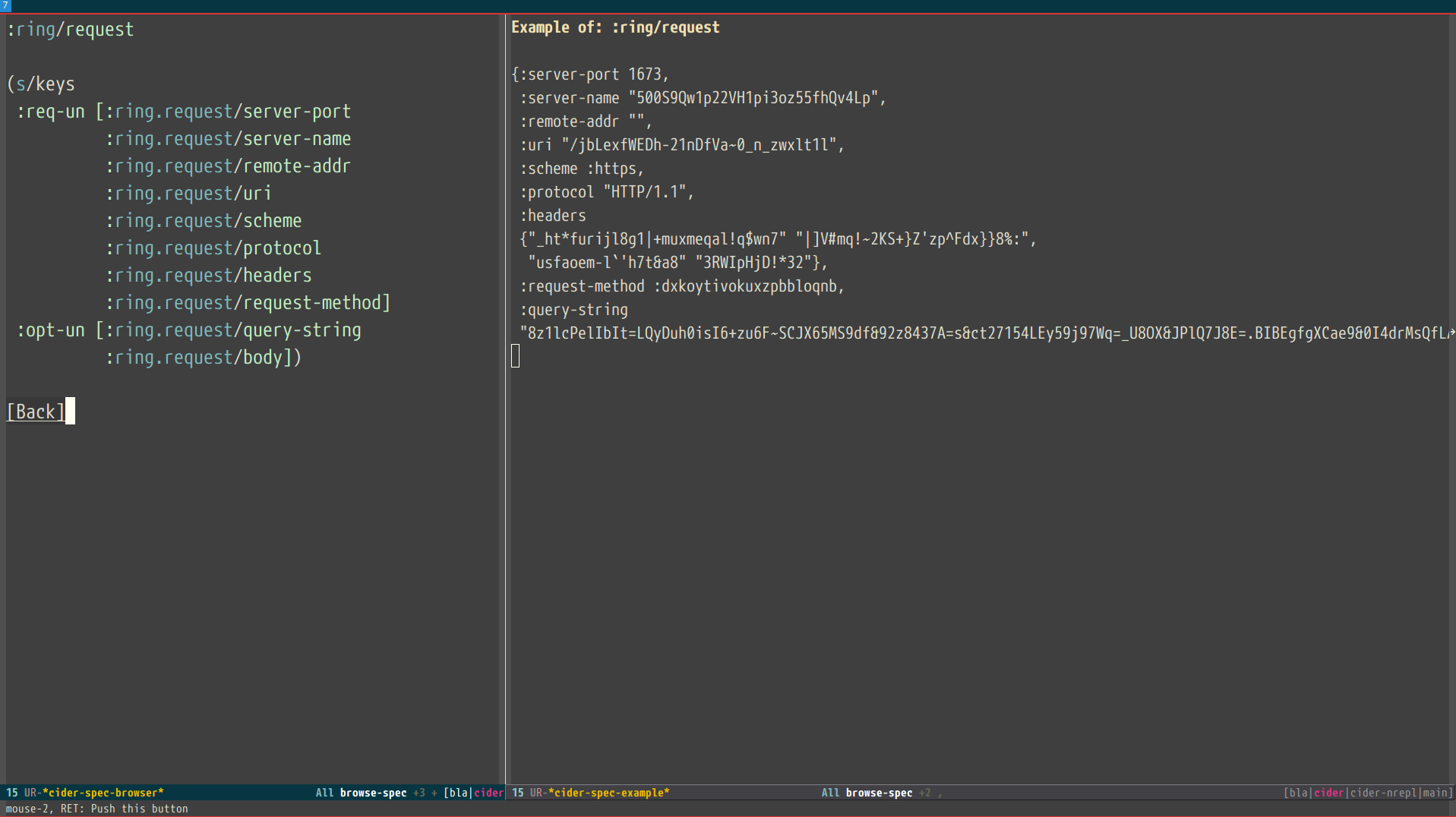
Browsing the Clojure Spec Registry
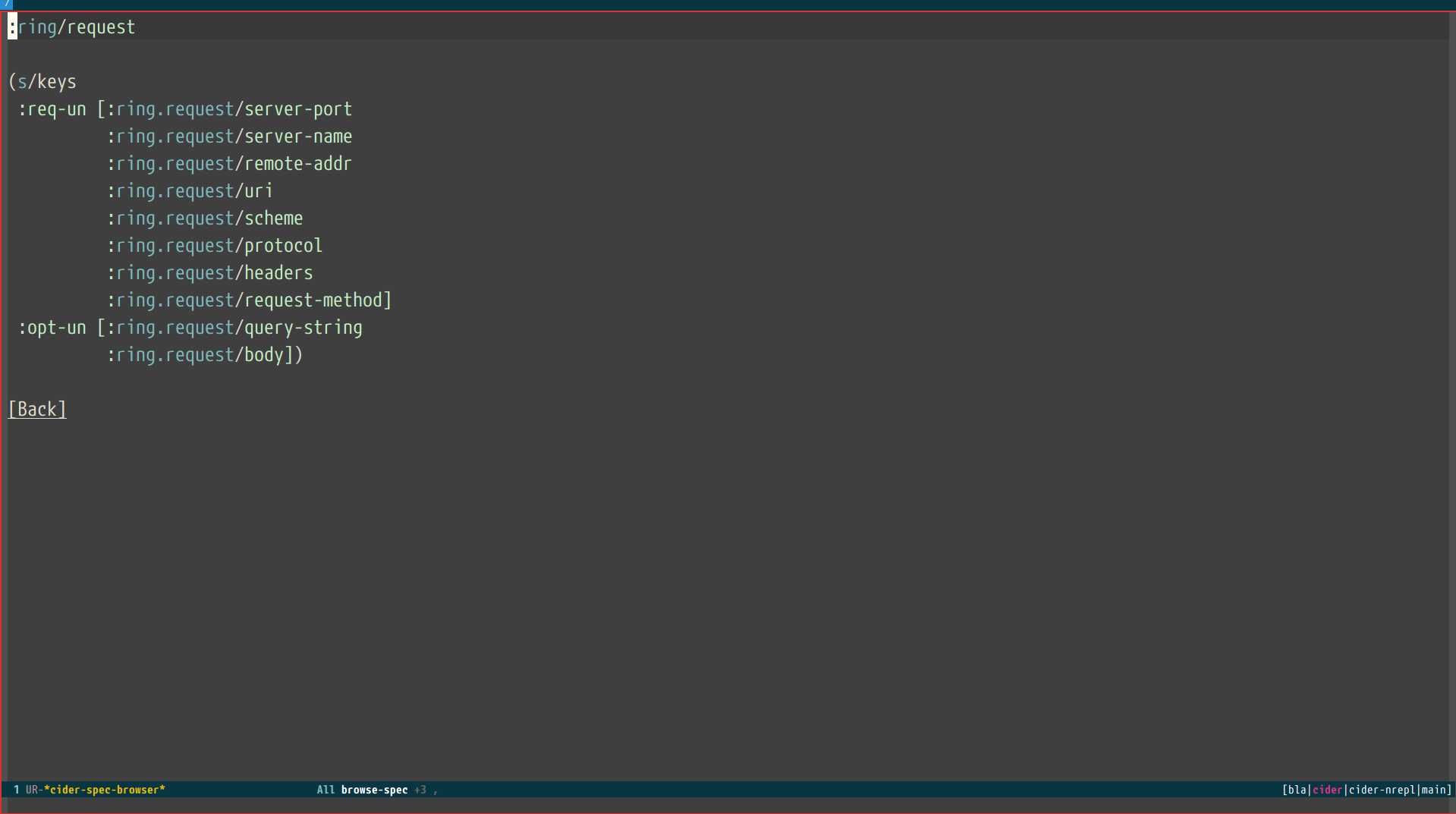
If you already know which spec you’re looking for, you can type
M-x cider-browse-spec and CIDER will prompt you for a
spec name and then drop you into the spec browser.
If you aren’t quite sure which spec you want, you can type
M-x cider-browse-spec-all. CIDER will then prompt you for
a regex and will filter out all the spec names that don’t match.
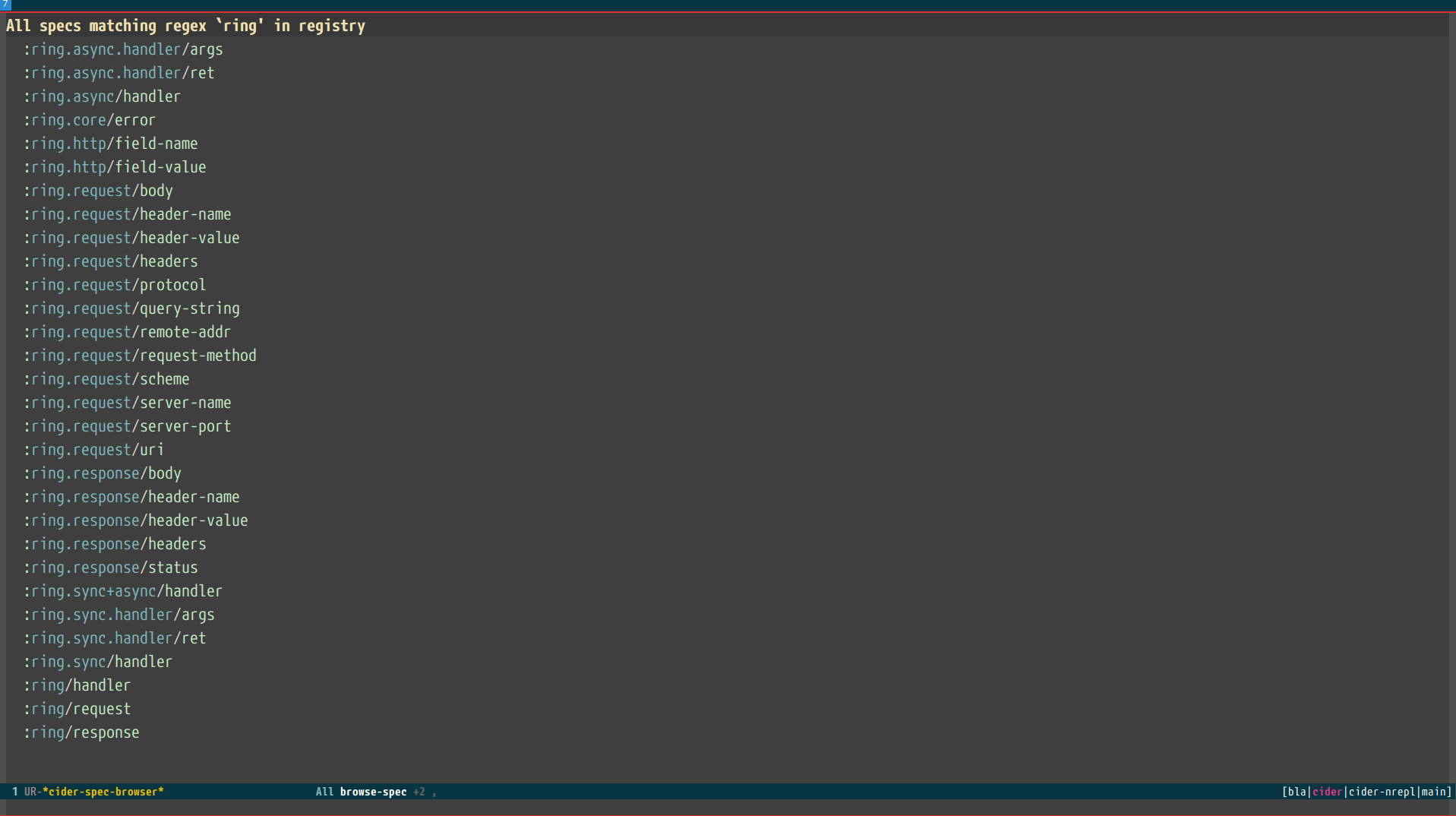
Once in the browser you can use your mouse or the keybindings below to navigate deeper.
| Keyboard shortcut | Description |
|---|---|
RET |
Browse the spec at point. |
^ |
Go up in the navigation stack. |
n |
Go to next spec. |
p |
Go to previous spec. |
e |
Generate an example for the current browser spec. |
If your project includes the org.clojure/test.check library, you can
type e when browsing a spec to generate an example that
meets the spec.