wx.FileDialog
This class represents the file chooser dialog.
The path and filename are distinct elements of a full file pathname. If path is "" the current directory will be used. If filename is "" no default filename will be supplied. The wildcard determines what files are displayed in the file selector, and file extension supplies a type extension for the required filename.
The typical usage for the open file dialog is:
def OnOpen(self, event):

    if self.contentNotSaved:
        if wx.MessageBox("Current content has not been saved! Proceed?", "Please confirm",
                         wx.ICON_QUESTION | wx.YES_NO, self) == wx.NO:
            return

    # otherwise ask the user what new file to open
    with wx.FileDialog(self, "Open XYZ file", wildcard="XYZ files (*.xyz)|*.xyz",
                       style=wx.FD_OPEN | wx.FD_FILE_MUST_EXIST) as fileDialog:

        if fileDialog.ShowModal() == wx.ID_CANCEL:
            return     # the user changed their mind

        # Proceed loading the file chosen by the user
        pathname = fileDialog.GetPath()
        try:
            with open(pathname, 'r') as file:
                self.doLoadDataOrWhatever(file)
        except IOError:
            wx.LogError("Cannot open file '%s'." % newfile)
The typical usage for the save file dialog is instead somewhat simpler:
def OnSaveAs(self, event):

    with wx.FileDialog(self, "Save XYZ file", wildcard="XYZ files (*.xyz)|*.xyz",
                       style=wx.FD_SAVE | wx.FD_OVERWRITE_PROMPT) as fileDialog:

        if fileDialog.ShowModal() == wx.ID_CANCEL:
            return     # the user changed their mind

        # save the current contents in the file
        pathname = fileDialog.GetPath()
        try:
            with open(pathname, 'w') as file:
                self.doSaveData(file)
        except IOError:
            wx.LogError("Cannot save current data in file '%s'." % pathname)
Wildcard Filters¶All implementations of the wx.FileDialog provide a wildcard filter. Typing a filename containing wildcards (, ?) in the filename text item, and clicking on Ok, will result in only those files matching the pattern being displayed. The wildcard may be a specification for multiple types of file with a description for each, such as:
wildcard = "BMP and GIF files (*.bmp;*.gif)|*.bmp;*.gif|PNG files (*.png)|*.png"
On Mac macOS in the open file dialog the filter choice box is not shown by default. Instead all given wildcards are applied at the same time: So in the above example all bmp, gif and png files are displayed. To enforce the display of the filter choice set the corresponding wx.SystemOptions before calling the file open dialog:
wx.SystemOptions.SetOption(wx.OSX_FILEDIALOG_ALWAYS_SHOW_TYPES, 1)
But in contrast to Windows and Unix, where the file type choice filters only the selected files, on Mac macOS even in this case the dialog shows all files matching all file types. The files which does not match the currently selected file type are greyed out and are not selectable.
Dialog Customization¶ Window Styles
Uniquely among the other standard dialogs, wx.FileDialog can be customized by adding extra controls to it. Moreover, there are two ways to do it: the first one is to define a callback function and use SetExtraControlCreator to tell the dialog to call it, while the second one requires defining a class inheriting from wx.FileDialogCustomizeHook and implementing its virtual functions, notably wx.FileDialogCustomizeHook.AddCustomControls where the extra controls have to be created, and finally calling SetCustomizeHook with this custom hook object. The first approach is somewhat simpler and more flexible, as it allows to create any kind of custom controls, but is not supported by the “new style” (where “new” means used since Windows Vista, i.e. circa 2007) file dialogs under MSW. Because of this, calling SetExtraControlCreator in wxMSW forces the use of old style (Windows XP) dialogs, that may look out of place. The second approach is implemented by the MSW dialogs natively and doesn’t suffer from this limitation, so its use is recommended, especially if the few simple control types supported by it (see wx.FileDialogCustomize for more information about the supported controls) are sufficient for your needs. Both of the approaches to the dialog customization are demonstrated in the Dialogs Sample, please check it for more details. This class supports the following styles:
wx.FD_DEFAULT_STYLE: Equivalent to FD_OPEN .
wx.FD_OPEN: This is an open dialog; usually this means that the default button’s label of the dialog is “Open”. Cannot be combined with FD_SAVE .
wx.FD_SAVE: This is a save dialog; usually this means that the default button’s label of the dialog is “Save”. Cannot be combined with FD_OPEN .
wx.FD_OVERWRITE_PROMPT: For save dialog only: prompt for a confirmation if a file will be overwritten. This style is always enabled on wxOSX and cannot be disabled.
wx.FD_NO_FOLLOW: Directs the dialog to return the path and file name of the selected shortcut file, not its target as it does by default. Currently this flag is only implemented in wxMSW and wxOSX (where it prevents aliases from being resolved). The non-dereferenced link path is always returned, even without this flag, under Unix and so using it there doesn’t do anything. This flag was added in wxWidgets 3.1.0.
wx.FD_FILE_MUST_EXIST: For open dialog only: the user may only select files that actually exist. Notice that under macOS the file dialog with FD_OPEN style always behaves as if this style was specified, because it is impossible to choose a file that doesn’t exist from a standard macOS file dialog.
wx.FD_MULTIPLE: For open dialog only: allows selecting multiple files.
wx.FD_CHANGE_DIR: Change the current working directory (when the dialog is dismissed) to the directory where the file(s) chosen by the user are.
wx.FD_PREVIEW: Show the preview of the selected files (currently only supported by wxGTK).
wx.FD_SHOW_HIDDEN: Show hidden files. This flag was added in wxWidgets 3.1.3
Note
New style file dialogs can only be used in wxMSW when the apartment, COM threading model is used. This is the case by default, but if the application initializes COM on its own using multi-threaded model, old style dialogs are used, at least when they must have a parent, as the new style dialog doesn’t support this threading model.
See also
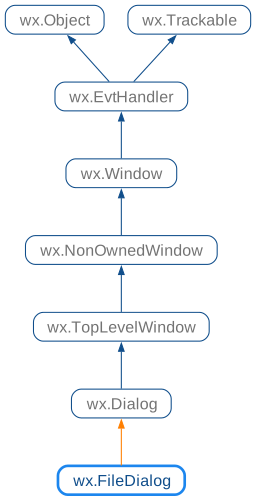
 Class Hierarchy
 Inheritance diagram for class FileDialog:
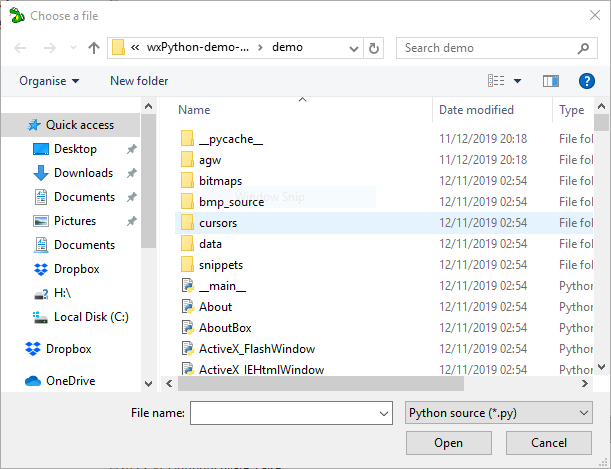
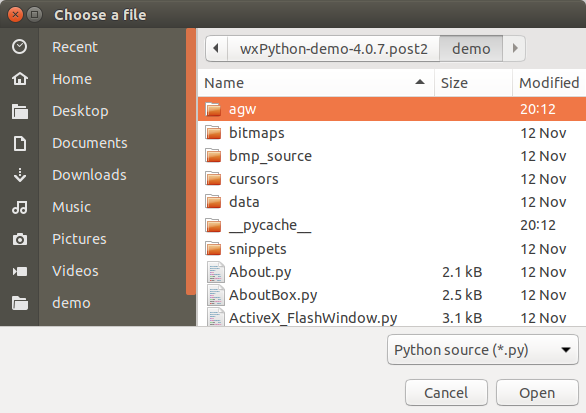
 Control Appearance
 Methods Summary
Constructor. |
|
Add a directory to the list of shortcuts shown in the dialog. |
|
Returns the path of the file currently selected in dialog. |
|
Returns the file type filter index currently selected in dialog. |
|
Returns the default directory. |
|
If functions |
|
Returns the default filename. |
|
Returns a list of filenames chosen in the dialog. This function |
|
Returns the index into the list of filters supplied, optionally, in the wildcard parameter. |
|
Returns the message that will be displayed on the dialog. |
|
Returns the full path (directory and filename) of the selected file. |
|
Returns a list of the full paths of the files chosen. This function |
|
Returns the file dialog wildcard. |
|
Set the hook to be used for customizing the dialog contents. |
|
Sets the default directory. |
|
Sets the default filename. |
|
Sets the default filter index, starting from zero. |
|
Sets the message that will be displayed on the dialog. |
|
Sets the path (the combined directory and filename that will be returned when the dialog is dismissed). |
|
Sets the wildcard, which can contain multiple file types, for example: “ |
|
Shows the dialog, returning |
 Properties Summary
See |
|
See |
|
See |
|
See |
|
See |
|
See |
|
See |
|
See |
 Class API
Possible constructors:
FileDialog(parent, message=FileSelectorPromptStr, defaultDir='',
           defaultFile='', wildcard=FileSelectorDefaultWildcardStr,
           style=FD_DEFAULT_STYLE, pos=DefaultPosition, size=DefaultSize,
           name=FileDialogNameStr) -> None
This class represents the file chooser dialog.
Constructor.
Use ShowModal to show the dialog.
parent (wx.Window) – Parent window.
message (string) – Message to show on the dialog.