wx.ListCtrl
A list control presents lists in a number of formats: list view, report view, icon view and small icon view.
In any case, elements are numbered from zero. For all these modes, the items are stored in the control and must be added to it using wx.ListCtrl.InsertItem method.
A special case of report view quite different from the other modes of the list control is a virtual control in which the items data (including text, images and attributes) is managed by the main program and is requested by the control itself only when needed which allows having controls with millions of items without consuming much memory. To use virtual list control you must use wx.ListCtrl.SetItemCount first and override at least wx.ListCtrl.OnGetItemText (and optionally wx.ListCtrl.OnGetItemImage or wx.ListCtrl.OnGetItemColumnImage and wx.ListCtrl.OnGetItemAttr ) to return the information about the items when the control requests it.
Virtual list control can be used as a normal one except that no operations which can take time proportional to the number of items in the control happen – this is required to allow having a practically infinite number of items. For example, in a multiple selection virtual list control, the selections won’t be sent when many items are selected at once because this could mean iterating over all the items.
Using many of wx.ListCtrl features is shown in the corresponding sample.
To intercept events from a list control, use the event table macros described in wx.ListEvent.
Column Ordering¶By default, the columns of a list control appear on the screen in order of their indices, i.e. column 0 appears first, then column 1 next, and so on. However this can be changed by using the SetColumnsOrder function to arbitrarily reorder the columns visual order. The user can also rearrange the columns interactively by dragging them. In this case, the index of the column is not the same as its order and the functions GetColumnOrder and GetColumnIndexFromOrder should be used to translate between them.
Example of reordering columns:
listctrl = wx.ListCtrl(...)
for i in range(3):
    listctrl.InsertColumn(i, wx.String.Format("Column %d", i))

order = [ 2, 0, 1]
listctrl.SetColumnsOrder(order)

# Now listctrl.GetColumnsOrder() will return order and
# listctrl.GetColumnIndexFromOrder(n) will return order[n] and
# listctrl.GetColumnOrder() will return 1, 2 and 0 for the column 0, 1 and 2
# respectively.
 Window Styles
This class supports the following styles:
wx.LC_LIST: Multicolumn list view, with optional small icons. Columns are computed automatically, i.e. you don’t set columns as in LC_REPORT . In other words, the list wraps, unlike a wx.ListBox.
wx.LC_REPORT: Single or multicolumn report view, with optional header.
wx.LC_VIRTUAL: The application provides items text on demand. May only be used with LC_REPORT .
wx.LC_ICON: Large icon view, with optional labels.
wx.LC_SMALL_ICON: Small icon view, with optional labels.
wx.LC_ALIGN_TOP: Icons align to the top. Win32 default, Win32 only.
wx.LC_ALIGN_LEFT: Icons align to the left.
wx.LC_AUTOARRANGE: Icons arrange themselves. Win32 only.
wx.LC_EDIT_LABELS: Labels are editable: the application will be notified when editing starts.
wx.LC_NO_HEADER: No header in report mode.
wx.LC_SINGLE_SEL: Single selection (default is multiple).
wx.LC_SORT_ASCENDING: Sort in ascending order. (You must still supply a comparison callback in wx.ListCtrl.SortItems .)
wx.LC_SORT_DESCENDING: Sort in descending order. (You must still supply a comparison callback in wx.ListCtrl.SortItems .)
wx.LC_HRULES: Draws light horizontal rules between rows in report mode.
wx.LC_VRULES: Draws light vertical rules between columns in report mode.
 Events Emitted by this Class
Handlers bound for the following event types will receive one of the wx.ListEvent parameters.
EVT_LIST_BEGIN_DRAG: Begin dragging with the left mouse button. Processes a wxEVT_LIST_BEGIN_DRAG event type.
EVT_LIST_BEGIN_RDRAG: Begin dragging with the right mouse button. Processes a wxEVT_LIST_BEGIN_RDRAG event type.
EVT_LIST_BEGIN_LABEL_EDIT: Begin editing a label. This can be prevented by calling Veto(). Processes a wxEVT_LIST_BEGIN_LABEL_EDIT event type.
EVT_LIST_END_LABEL_EDIT: Finish editing a label. This can be prevented by calling Veto(). Processes a wxEVT_LIST_END_LABEL_EDIT event type.
EVT_LIST_DELETE_ITEM: An item was deleted. Processes a wxEVT_LIST_DELETE_ITEM event type.
EVT_LIST_DELETE_ALL_ITEMS: All items were deleted. Processes a wxEVT_LIST_DELETE_ALL_ITEMS event type.
EVT_LIST_ITEM_SELECTED: The item has been selected. Notice that the mouse is captured by the control itself when this event is generated, see event handling overview. Processes a wxEVT_LIST_ITEM_SELECTED event type.
EVT_LIST_ITEM_DESELECTED: The item has been deselected. Processes a wxEVT_LIST_ITEM_DESELECTED event type.
EVT_LIST_ITEM_ACTIVATED: The item has been activated (ENTER or double click). Processes a wxEVT_LIST_ITEM_ACTIVATED event type.
EVT_LIST_ITEM_FOCUSED: The currently focused item has changed. Processes a wxEVT_LIST_ITEM_FOCUSED event type.
EVT_LIST_ITEM_MIDDLE_CLICK: The middle mouse button has been clicked on an item. This is only supported by the generic control. Processes a wxEVT_LIST_ITEM_MIDDLE_CLICK event type.
EVT_LIST_ITEM_RIGHT_CLICK: The right mouse button has been clicked on an item. Processes a wxEVT_LIST_ITEM_RIGHT_CLICK event type.
EVT_LIST_KEY_DOWN: A key has been pressed. Processes a wxEVT_LIST_KEY_DOWN event type.
EVT_LIST_INSERT_ITEM: An item has been inserted. Processes a wxEVT_LIST_INSERT_ITEM event type.
EVT_LIST_COL_CLICK: A column (m_col) has been left-clicked. Processes a wxEVT_LIST_COL_CLICK event type.
EVT_LIST_COL_RIGHT_CLICK: A column (m_col) has been right-clicked. Processes a wxEVT_LIST_COL_RIGHT_CLICK event type.
EVT_LIST_COL_BEGIN_DRAG: The user started resizing a column - can be vetoed. Processes a wxEVT_LIST_COL_BEGIN_DRAG event type.
EVT_LIST_COL_DRAGGING: The divider between columns is being dragged. Processes a wxEVT_LIST_COL_DRAGGING event type.
EVT_LIST_COL_END_DRAG: A column has been resized by the user. Processes a wxEVT_LIST_COL_END_DRAG event type.
EVT_LIST_CACHE_HINT: Prepare cache for a virtual list control. Processes a wxEVT_LIST_CACHE_HINT event type.
EVT_LIST_ITEM_CHECKED: The item has been checked. Processes a wxEVT_LIST_ITEM_CHECKED event type (new since wxWidgets 3.1.0).
EVT_LIST_ITEM_UNCHECKED: The item has been unchecked. Processes a wxEVT_LIST_ITEM_UNCHECKED event type (new since wxWidgets 3.1.0).
Note
The native wxOSX implementation for report mode that was added in wxWidgets 2.8 was removed in wxWidgets 3.1, meaning for wxWidgets 3.1+ wxOSX uses the generic implementation for all modes.
Note
All the other functions still work with the column indices, i.e. the visual positioning of the columns on screen doesn’t affect the code setting or getting their values for example.
Note
Under wxMSW this control uses SystemThemedControl for an explorer style appearance by default since wxWidgets 3.1.0. If this is not desired, you can call SystemThemedControl.EnableSystemTheme with false argument to disable this.
See also
ListCtrl Overview, wx.ListView, wx.ListBox, wx.TreeCtrl, wx.ImageList, wx.ListEvent, wx.ListItem, wx.adv.EditableListBox
 Class Hierarchy
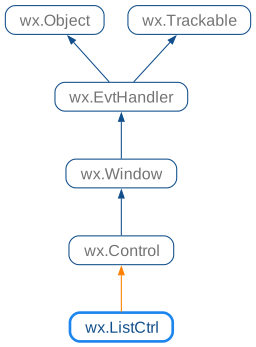
 Inheritance diagram for class ListCtrl:
 Control Appearance
 Known Subclasses
 Methods Summary
Default constructor. |
|
Append an item to the list control. The entry parameter should be a |
|
Adds a new column to the list control in report view mode. |
|
Arranges the items in icon or small icon view. |
|
Sets the image list associated with the control and takes ownership of it. |
|
Check or uncheck a wx.ListItem in a control using checkboxes. |
|
Deletes all items and all columns. |
|
Creates the list control. |
|
Delete all columns in the list control. |
|
Deletes all items in the list control. |
|
Deletes a column. |
|
Deletes the specified item. |
|
Starts editing the label of the given item. |
|
Enable alternating row background colours (also called zebra striping). |
|
Enable or disable a beep if there is no match for the currently entered text when searching for the item from keyboard. |
|
Enable or disable checkboxes for list items. |
|
Can be used to disable the system theme of controls using it by default. |
|
Ensures this item is visible. |
|
Extend rules and alternate rows background to the entire client area. |
|
Find an item whose label matches this string, starting from start or the beginning if start is |
|
Focus and show the given item. |
|
Get the alternative row background colour. |
|
Gets information about this column. See SetItem() for more information. |
|
Returns the number of columns. |
|
Gets the column index from its position in visual order. |
|
Gets the column visual order position. |
|
Gets the column width (report view only). |
|
Returns the array containing the orders of all columns. |
|
Gets the number of items that can fit vertically in the visible area of the list control (list or report view) or the total number of items in the list control (icon or small icon view). |
|
Returns the edit control being currently used to edit a label. |
|
Returns the first selected item, or -1 when none is selected. |
|
Gets the currently focused item or -1 if none is focused. |
|
Returns the specified image list. |
|
Gets information about the item. See SetItem() for more information. |
|
Returns the colour for this item. |
|
Returns the number of items in the list control. |
|
Gets the application-defined data associated with this item. |
|
Returns the item’s font. |
|
Returns the position of the item, in icon or small icon view. |
|
Returns the rectangle representing the item’s size and position, in physical coordinates. |
|
Retrieves the spacing between icons in pixels: horizontal spacing is returned as |
|
Gets the item state. |
|
Gets the item text for this item. |
|
Returns the colour for this item. |
|
Searches for an item with the given geometry or state, starting from item but excluding the item itself. |
|
Returns subsequent selected items, or -1 when no more are selected. |
|
Returns the number of selected items in the list control. |
|
Returns the column that shows the sort indicator. |
|
Returns the rectangle representing the size and position, in physical coordinates, of the given subitem, i.e. |
|
Gets the text colour of the list control. |
|
Gets the index of the topmost visible item when in list or report view. |
|
Returns the new value to use for sort indicator after clicking a column. |
|
Returns the rectangle taken by all items in the control. |
|
Returns |
|
Determines which item (if any) is at the specified point, giving details in flags. |
|
Determines which item (if any) is at the specified point, giving details in flags. |
|
Returns |
|
For report view mode (only), inserts a column. |
|
Inserts an item, returning the index of the new item if successful, -1 otherwise. |
|
Returns |
|
Returns |
|
Return |
|
Returns |
|
Returns |
|
Check if the item is visible. |
|
This function may be overridden in the derived class for a control with |
|
Override this function in the derived class for a control with |
|
This function must be overridden in the derived class for a control with |
|
This function must be overridden in the derived class for a control with |
|
This function must be overridden in the derived class for a control with |
|
Redraws the given item. |
|
Redraws the items between itemFrom and itemTo. |
|
Remove the sort indicator from the column being used as sort key. |
|
Scrolls the list control. |
|
Selects/deselects an item. |
|
Set the alternative row background colour to a specific colour. |
|
Sets the background colour. |
|
Sets information about this column. |
|
Sets the column width. |
|