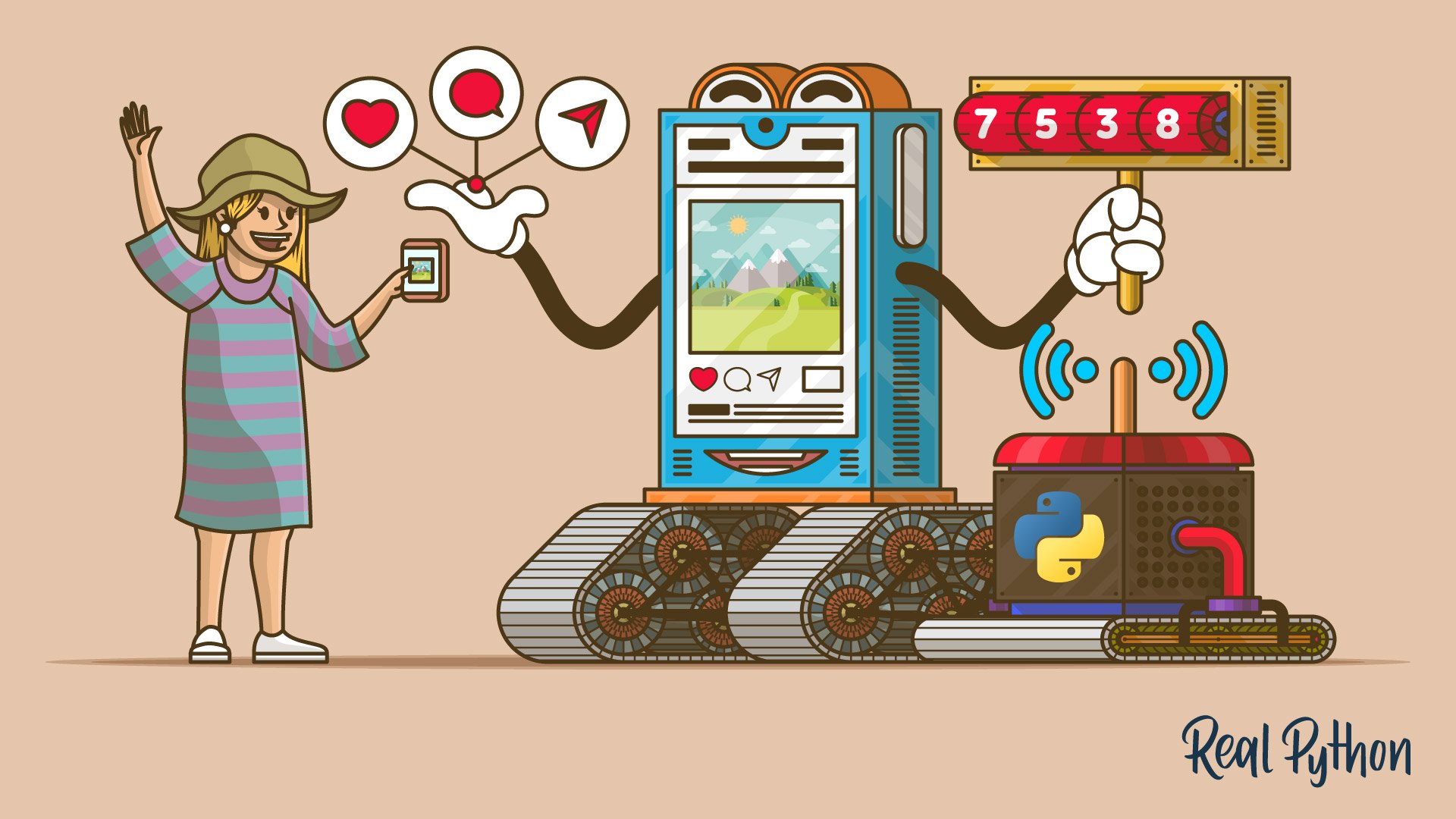
What do SocialCaptain, Kicksta, Instavast, and many other companies have in common? They all help you reach a greater audience, gain more followers, and get more likes on Instagram while you hardly lift a finger. They do it all through automation, and people pay them a good deal of money for it. But you can do the same thing—for free—using InstaPy!
In this tutorial, you’ll learn how to build a bot with Python and InstaPy, a library by Tim Großmann which automates your Instagram activities so that you gain more followers and likes with minimal manual input. Along the way, you’ll learn about browser automation with Selenium and the Page Object Pattern, which together serve as the basis for InstaPy.
In this tutorial, you’ll learn:
- How Instagram bots work
- How to automate a browser with Selenium
- How to use the Page Object Pattern for better readability and testability
- How to build an Instagram bot with InstaPy
You’ll begin by learning how Instagram bots work before you build one.
Important: Make sure you check Instagram’s Terms of Use before implementing any kind of automation or scraping techniques.
Free Bonus: 5 Thoughts On Python Mastery, a free course for Python developers that shows you the roadmap and the mindset you’ll need to take your Python skills to the next level.
How Instagram Bots Work
How can an automation script gain you more followers and likes? Before answering this question, think about how an actual person gains more followers and likes.
They do it by being consistently active on the platform. They post often, follow other people, and like and leave comments on other people’s posts. Bots work exactly the same way: They follow, like, and comment on a consistent basis according to the criteria you set.
The better the criteria you set, the better your results will be. You want to make sure you’re targeting the right groups because the people your bot interacts with on Instagram will be more likely to interact with your content.
For example, if you’re selling women’s clothing on Instagram, then you can instruct your bot to like, comment on, and follow mostly women or profiles whose posts include hashtags such as #beauty, #fashion, or #clothes. This makes it more likely that your target audience will notice your profile, follow you back, and start interacting with your posts.
How does it work on the technical side, though? You can’t use the Instagram Developer API since it is fairly limited for this purpose. Enter browser automation. It works in the following way:
- You serve it your credentials.
- You set the criteria for who to follow, what comments to leave, and which type of posts to like.
- Your bot opens a browser, types in
https://instagram.comon the address bar, logs in with your credentials, and starts doing the things you instructed it to do.
Next, you’ll build the initial version of your Instagram bot, which will automatically log in to your profile. Note that you won’t use InstaPy just yet.
How to Automate a Browser
For this version of your Instagram bot, you’ll be using Selenium, which is the tool that InstaPy uses under the hood.
First, install Selenium. During installation, make sure you also install the Firefox WebDriver since the latest version of InstaPy dropped support for Chrome. This also means that you need the Firefox browser installed on your computer.
Now, create a Python file and write the following code in it:
 1from time import sleep
 2from selenium import webdriver
 3
 4browser = webdriver.Firefox()
 5
 6browser.get('https://www.instagram.com/')
 7
 8sleep(5)
 9
10browser.close()
Run the code and you’ll see that a Firefox browser opens and directs you to the Instagram login page. Here’s a line-by-line breakdown of the code:
- Lines 1 and 2 import
sleepandwebdriver. - Line 4 initializes the Firefox driver and sets it to
browser. - Line 6 types
https://www.instagram.com/on the address bar and hits Enter. - Line 8 waits for five seconds so you can see the result. Otherwise, it would close the browser instantly.
- Line 10 closes the browser.
This is the Selenium version of Hello, World. Now you’re ready to add the code that logs in to your Instagram profile. But first, think about how you would log in to your profile manually. You would do the following:
- Go to
https://www.instagram.com/. - Click the login link.
- Enter your credentials.
- Hit the login button.
The first step is already done by the code above. Now change it so that it clicks on the login link on the Instagram home page:
 1from time import sleep
 2from selenium import webdriver
 3
 4browser = webdriver.Firefox()
 5browser.implicitly_wait(5)
 6
 7browser.get('https://www.instagram.com/')
 8
 9login_link = browser.find_element_by_xpath("//a[text()='Log in']")
10login_link.click()
11
12sleep(5)
13
14browser.close()
Note the highlighted lines:
- Line 5 sets five seconds of waiting time. If Selenium can’t find an element, then it waits for five seconds to allow everything to load and tries again.
- Line 9 finds the element
<a>whose text is equal toLog in. It does this using XPath, but there are a few other methods you could use. - Line 10 clicks on the found element
<a>for the login link.
Run the script and you’ll see your script in action. It will open the browser, go to Instagram, and click on the login link to go to the login page.
On the login page, there are three important elements:
- The username input
- The password input
- The login button
Next, change the script so that it finds those elements, enters your credentials, and clicks on the login button:
 1from time import sleep
 2from selenium import webdriver
 3
 4browser = webdriver.Firefox()
 5browser.implicitly_wait(5)
 6
 7browser.get('https://www.instagram.com/')
 8
 9login_link = browser.find_element_by_xpath("//a[text()='Log in']")
10login_link.click()
11
12sleep(2)
13
14username_input = browser.find_element_by_css_selector("input[name='username']")
15password_input = browser.find_element_by_css_selector("input[name='password']")
16
17username_input.send_keys("<your username>")
18password_input.send_keys("<your password>")
19
20login_button = browser.find_element_by_xpath("//button[@type='submit']")
21login_button.click()
22
23sleep(5)
24
25browser.close()
Here’s a breakdown of the changes:
- Line 12 sleeps for two seconds to allow the page to load.
- Lines 14 and 15 find username and password inputs by CSS. You could use any other method that you prefer.
- Lines 17 and 18 type your username and password in their respective inputs. Don’t forget to fill in
<your username>and<your password>! - Line 20 finds the login button by XPath.
- Line 21 clicks on the login button.
Run the script and you’ll be automatically logged in to to your Instagram profile.
You’re off to a good start with your Instagram bot. If you were to continue writing this script, then the rest would look very similar. You would find the posts that you like by scrolling down your feed, find the like button by CSS, click on it, find the comments section, leave a comment, and continue.
The good news is that all of those steps can be handled by InstaPy. But before you jump into using Instapy, there is one other thing that you should know about to better understand how InstaPy works: the Page Object Pattern.
How to Use the Page Object Pattern
Now that you’ve written the login code, how would you write a test for it? It would look something like the following:
def test_login_page(browser):
    browser.get('https://www.instagram.com/accounts/login/')
    username_input = browser.find_element_by_css_selector("input[name='username']")
    password_input = browser.find_element_by_css_selector("input[name='password']")
    username_input.send_keys("<your username>")
    password_input.send_keys("<your password>")
    login_button = browser.find_element_by_xpath("//button[@type='submit']")
    login_button.click()

    errors = browser.find_elements_by_css_selector('#error_message')
    assert len(errors) == 0
Can you see what’s wrong with this code? It doesn’t follow the DRY principle. That is, the code is duplicated in both the application and the test code.
Duplicating code is especially bad in this context because Selenium code is dependent on UI elements, and UI elements tend to change. When they do change, you want to update your code in one place. That’s where the Page Object Pattern comes in.
With this pattern, you create page object classes for the most important pages or fragments that provide interfaces that are straightforward to program to and that hide the underlying widgetry in the window. With this in mind, you can rewrite the code above and create a HomePage class and a LoginPage class:
from time import sleep

class LoginPage:
    def __init__(self, browser):
        self.browser = browser

    def login(self, username, password):
        username_input = self.browser.find_element_by_css_selector("input[name='username']")
        password_input = self.browser.find_element_by_css_selector("input[name='password']")
        username_input.send_keys(username)
        password_input.send_keys(password)
        login_button = browser.find_element_by_xpath("//button[@type='submit']")
        login_button.click()
        sleep(5)

class HomePage:
    def __init__(self, browser):
        self.browser = browser
        self.browser.get('https://www.instagram.com/')

    def go_to_login_page(self):
        self.browser.find_element_by_xpath("//a[text()='Log in']").click()
        sleep(2)
        return LoginPage(self.browser)
The code is the same except that the home page and the login page are represented as classes. The classes encapsulate the mechanics required to find and manipulate the data in the UI. That is, there are methods and accessors that allow the software to do anything a human can.
One other thing to note is that when you navigate to another page using a page object, it returns a page object for the new page. Note the returned value of go_to_log_in_page(). If you had another class called FeedPage, then login() of the LoginPage class would return an instance of that: return FeedPage().
Here’s how you can put the Page Object Pattern to use:
from selenium import webdriver

browser = webdriver.Firefox()
browser.implicitly_wait(5)

home_page = HomePage(browser)
login_page = home_page.go_to_login_page()
login_page.login("<your username>"