The Model Context Protocol (MCP) is a new open protocol that allows AI models to interact with external systems in a standardized, extensible way. In this tutorial, you’ll install MCP, explore its client-server architecture, and work with its core concepts: prompts, resources, and tools. You’ll then build and test a Python MCP server that queries e-commerce data and integrate it with an AI agent in Cursor to see real tool calls in action.
By the end of this tutorial, you’ll understand:
- What MCP is and why it was created
- What MCP prompts, resources, and tools are
- How to build an MCP server with customized tools
- How to integrate your MCP server with AI agents like Cursor
You’ll get hands-on experience with Python MCP by creating and testing MCP servers and connecting your MCP to AI tools. To keep the focus on learning MCP rather than building a complex project, you’ll build a simple MCP server that interacts with a simulated e-commerce database. You’ll also use Cursor’s MCP client, which saves you from having to implement your own.
Note: If you’re curious about further discussions on MCP, then listen to the Real Python Podcast Episode 266: Dangers of Automatically Converting a REST API to MCP.
You’ll get the most out of this tutorial if you’re comfortable with intermediate Python concepts such as functions, object-oriented programming, and asynchronous programming. It will also be helpful if you’re familiar with AI tools like ChatGPT, Claude, LangChain, and Cursor.
Get Your Code: Click here to download the free sample code that shows you how to use Python MCP to connect your LLM With the World.
Take the Quiz: Test your knowledge with our interactive “Python MCP Server: Connect LLMs to Your Data” quiz. You’ll receive a score upon completion to help you track your learning progress:
Interactive Quiz
Python MCP Server: Connect LLMs to Your DataTest your knowledge of Python MCP. Practice installation, tools, resources, transports, and how LLMs interact with MCP servers.
Installing Python MCP
Python MCP is available on PyPI, and you can install it with pip. Open a terminal or command prompt, create a new virtual environment, and then run the following command:
(venv) $ python -m pip install "mcp[cli]"
This command will install the latest version of MCP from PyPI onto your machine. To verify that the installation was successful, start a Python REPL and import MCP:
>>> import mcp
If the import runs without error, then you’ve successfully installed MCP. You’ll also need pytest-asyncio for this tutorial:
(venv) $ python -m pip install pytest-asyncio
It’s a pytest plugin that adds asyncio support, which you’ll use to test your MCP server. With that, you’ve installed all the Python dependencies you need, and you’re ready to dive into MCP! You’ll start with a brief introduction to MCP and its core concepts.
What Is MCP?
Before diving into the code for this tutorial, you’ll learn what MCP is and the problem it tries to solve. You’ll then explore MCP’s core primitives—prompts, resources, and tools.
Understanding MCP
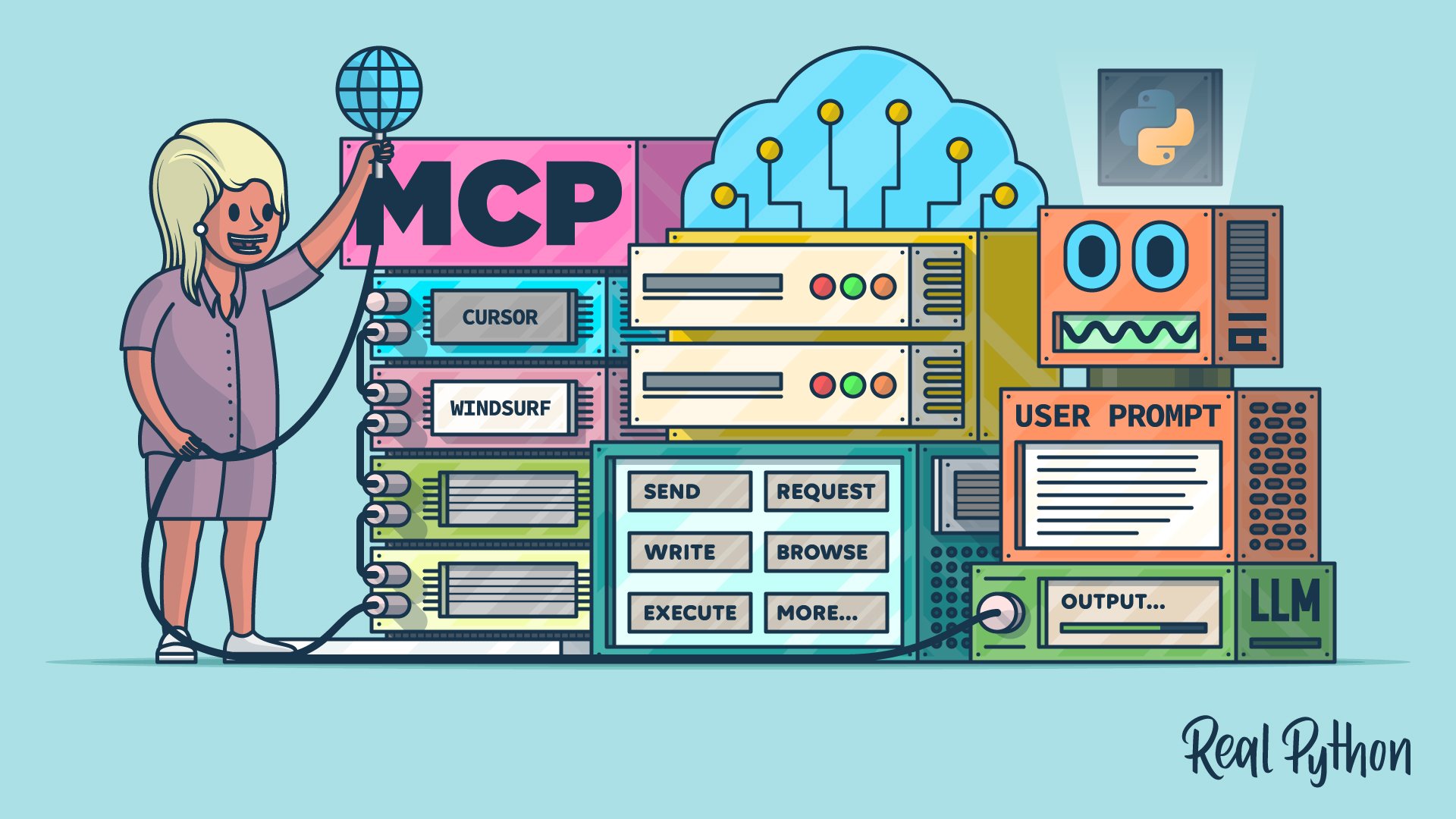
The Model Context Protocol is a protocol for AI language models, often referred to as large language models (LLMs), that standardizes how they interact with the outside world. This interaction most often involves performing actions like sending emails, writing and executing code, making API requests, browsing the web, and much more.
You might be wondering how LLMs are capable of this. How can an LLM that accepts text as input and returns text as output possibly perform actions? The key to this capability lies in function calling—a process through which LLMs execute predefined functions in a programming language like Python. At a high level, here’s what an LLM function-calling workflow might look like:

The diagram above illustrates how an LLM and Python process could interact to perform an action through function calling. Here’s a breakdown of each step:
-
User Prompt: The user first sends a prompt to the Python process. For example, the user might ask a question that requires a database query to answer, such as “How many customers have ordered our product today?”
-
Function Descriptions: The Python process can expose several functions to the LLM, allowing it to decide which one to call. You do this by type hinting your functions’ input arguments and writing thorough docstrings that describe what your functions do. An LLM framework like LangChain will convert your function definition into a text description and send it to an LLM along with the user prompt.
-
User Prompt: In combination with the function descriptions, the LLM also needs the user prompt to guide which function(s) it should call.
-
Function Call JSON: Once the LLM receives the user prompt and a description of each function available in your Python process, it can decide which function to call by sending back a JSON string. The JSON string must include the name of the function that the LLM wants to execute, as well as the inputs to pass to that function. If the JSON string is valid, then your Python process can convert it into a dictionary and call the respective function.
-
Function Output: If your Python process successfully executes the function call specified in the JSON string, it then sends the function’s output back to the LLM for further processing. This is useful because it allows the LLM to interpret and summarize the function’s output in a human-readable format.
-
Summarized Results: The LLM returns summarized results back to the Python process. For example, if the user prompt is “How many customers have ordered our product today?”, the summarized result might be “10 customers have placed orders today.” Despite all of the work happening between the Python process and the LLM to query the database in this example, the user experience is seamless.
-
Summarized Results: Lastly, the Python process gives the LLM’s summarized results to the user.
The power of MCP lies in its standardized architecture built around clients and servers. An MCP server is an API that hosts the prompts, resources, and tools you want to make available to an LLM. You’ll learn about prompts, resources, and tools shortly.
An MCP client acts as the bridge between the LLM and the server—exposing the server’s content, receiving input from the LLM, executing tools on the server, and returning the results back to the model or end user.
Note: You probably noticed that the user prompt goes through the Python process before reaching the LLM, and this might be a point of confusion. Tool calling processes, like LangChain or Cursor, receive your user prompt before passing it to the underlying LLM via an API call. In this way, you’re not directly interacting with the LLM API. Instead, the Python process, or any other tool you’re using, acts as a mediator between you and the LLM.
Unlike in the diagram above, where everything executes through a single process, you typically deploy MCP clients and servers as separate, decoupled processes. Users typically interact with MCP clients hosted in chat interfaces rather than making requests directly to servers. This is massively advantageous because any MCP client can interact with any server that adheres to the MCP protocol.
In other words, if you have an MCP client hosted in, say, a chat interface, you can connect as many MCP servers as the client supports. You, as an MCP server developer, can focus solely on creating the tools you need your LLM applications to use rather than spending time writing boilerplate code to create the interaction between your tools and the LLM.
For the broader open-source community, this means developers don’t have to waste time writing custom integrations for commonly used services like GitHub, Gmail, Slack, and others. In fact, the vast majority of companies that developers rely on have already created MCP servers for their services.
MCP is also useful if you work for a large organization or want to avoid rewriting logic when you switch LLM frameworks. Simply expose what your organization needs through MCP servers, and any application with an MCP client can leverage it.
For the remainder of this tutorial, you’ll focus solely on building, testing, and using MCP servers. You can read more about the intricacies of how MCP clients work in the official MCP documentation. Up next, you’ll briefly explore the core primitives of MCP servers—prompts, resources, and tools.
Exploring Prompts, Resources, and Tools
As already mentioned, MCP servers support three core primitives—prompts, resources, and tools—each serving a distinct role in how LLMs interact with external systems.
If you have any experience with LangChain, LangGraph, LlamaIndex, or any other prompt engineering framework, then you’re probably familiar with prompts. Prompts define reusable templates that guide LLM interactions. They allow servers to expose structured inputs and workflows that users or clients can invoke with minimal effort. Prompts can accept arguments, reference external context, and guide multi-step interactions.
Storing prompts on MCP servers allows you to reuse instructions that you’ve found helpful with LLM interactions in the past. You can think of a prompt as a formatted Python string. For example, if you want any LLM to read and summarize customer reviews, then you might add the following prompt to your MCP server:
"""
Your job is to use customer reviews to answer questions about
their shopping experience. Use the following context to answer
questions. Be as detailed as possible, but don't make up any
information that's not from the context. If you don't know an
answer, say you don't know.

{context}

{question}
"""
The LLM, and subsequently the MCP client, could fetch customer reviews, put them in place of the context parameter, and then place your specific question about the customer reviews in place of the question parameter. The benefit is that it saves you from having to rewrite the instruction in the prompt every time you want to analyze reviews.
The next server primitive you should understand is the resource. All you need to know about resources is that they expose data to the LLM. This data can be just about anything, but common examples include documents, files, images, database entries, logs, and even videos. Unlike prompts, resources are usually selected by the LLM, not the user. However, some clients require you to opt into specific resources, while others may infer usage contextually.
Resources are read-only and represented via URIs, supporting both text and binary formats. For example, you might expose your employee handbook as a resource with the URI file:///home/user/documents/employee_handbook.pdf. This way, any employee using an MCP client with access to your server can ask a question about the handbook, and the underlying LLM will use the file you’ve exposed to answer.
The last and most important primitive you should care about is the tool. Tools are nothing more than functions hosted by API endpoints that allow LLMs to trigger real-world actions. Tools can encapsulate virtually any logic that you can write in a programming language.
Unlike prompts and resources, tools are designed to be model-invoked with client-side approval as needed. Each tool is defined with a JSON schema for its input, and annotations can hint at safety properties like idempotence or potential destructiveness.
Tools are the most powerful and commonly used primitives, enabling LLMs to interact dynamically with external systems, and you’ll spend the next section building an MCP server with several tools. You won’t create your own prompts and resources in this tutorial, but if you’re interested in learning more, check out the MCP documentation.
Building an MCP Server
Now that you have a high-level understanding of MCP and the core primitives of MCP servers, you’re ready to build your own MCP server! In this section, you’ll build and test a server that’ll be used by an e-commerce LLM agent. You’ll build tools that can fetch customer information, order statuses, and inventory details. Later in this tutorial, you’ll learn how to expose these tools to an LLM agent through an MCP client.
Defining MCP Tools
Before you create your MCP server and define tools for your e-commerce business, you’ll want to create a few dictionaries to simulate tables in a transactional database. You can add the dictionaries in a script called transactional_db.py:
transactional_db.py
CUSTOMERS_TABLE = {
    "CUST123": {
        "name": "Alice Johnson",
        "email": "alice@example.com",
        "phone": "555-1234",
    },
    "CUST456": {
        "name": "Bob Smith",
        "email": "bob@example.com",
        "phone": "555-5678",
    },
}

ORDERS_TABLE = {
    "ORD1001": {
        "customer_id": "CUST123",
        "date": "2024-04-01",
        "status": "Shipped",
        "total": 89.99,
        "items": ["SKU100", "SKU200"],
    },
    "ORD1015": {
        "customer_id": "CUST123",
        "date": "2024-05-17",
        "status": "Processing",
        "total": 45.50,
        "items": ["SKU300"],
    },
    "ORD1022": {
        "customer_id": "CUST456",
        "date": "2024-06-04",
        "status": "Delivered",
        "total": 120.00,
        "items": ["SKU100", "SKU100"],
    },
}

PRODUCTS_TABLE = {
    "SKU100": {"name": "Wireless Mouse", "price": 29.99, "stock": 42},
    "SKU200": {"name": "Keyboard", "price": 59.99, "stock": 18},
    "SKU300": {"name": "USB-C Cable", "price": 15.50, "stock": 77},
}