
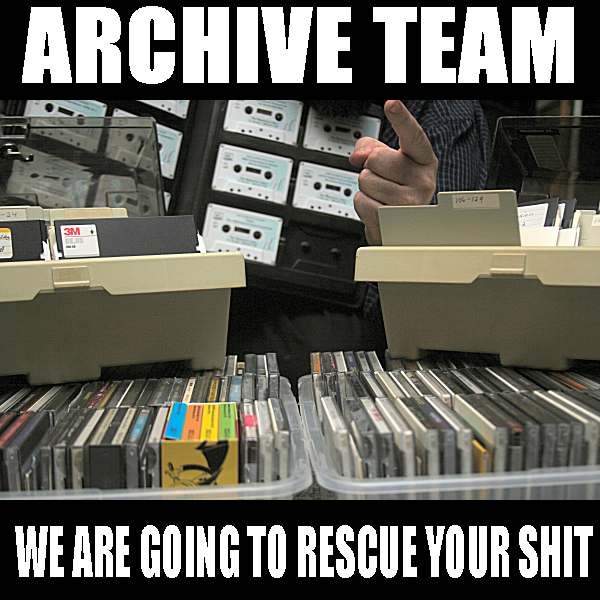
 Formed in 2009, the Archive Team (not to be confused with the archive.org Archive-It Team) is a rogue archivist collective dedicated to saving copies of rapidly dying or deleted websites for the sake of history and digital heritage. The group is 100% composed of volunteers and interested parties, and has expanded into a large amount of related projects for saving online and digital history.

Streaming is available in most browsers,
and in the WWDC app.
-
Subscription Offers Best Practices
Dive into implementation best practices for Subscription Offers using StoreKit and server-side logic. Learn how to generate signatures, determine customer eligibility, and reduce churn, plus gain insights into strategies for distributing offers to your customers and utilizing Subscription Offers to give your subscribers the best experience.
Resources
- Auto-Renewable Subscriptions
- Generating a Promotional Offer Signature on the Server
- Generating a Signature for Promotional Offers
- Implementing Promotional Offers in Your App
- Learn more about designing subscriptions
- Promote Your Subscriptions with New Offers
- Setting Up Promotional Offers
- Presentation Slides (PDF)
Related Videos
WWDC 2020
WWDC 2019
-
Download
Good afternoon and welcome to Subscription Offers Best Practices.
My name is Ross LaBeau. I'm an engineer on the App Store Team.
And today we're going to take a deep dive into the App Store's latest in-app purchase feature.
So Subscription Offers are an exciting new way for subscription developers to offer a discounted price to the customers for a specific duration of time.
Now we know that churn is one of the major reducers of profit for subscription apps.
And this is a powerful new tool to help mitigate churn by retaining customers or by winning back customers who have already churned.
So the coolest part of Subscription Offers is actually that you choose when to offer customers an offer and you choose which ones to show them.
So for example, if you've just received an auto-renewable subscription server-to-server notification saying the customer has disabled auto-renew, you may want to take that time, take action right then and send them an offer for say three months at half off to try and keep them engaged with your app and staying subscribed.
Now unlike introductory offers, customers can redeem as many Subscription Offers as you allow, and they can even redeem the same one more than once.
And the only qualification that the App Store puts is that the customer must be an existing or previous subscriber to an auto-renewable subscription in your app.
So today we'll go over the setup of how you create these offers in App Store Connect.
We'll discuss how to generate the cryptographic signature that you need to send up with each transaction.
And we'll talk about the new StoreKit APIs and how to use them to send up a transaction to the App Store and make a purchase.
We'll discuss the eligibility from both the App Store's point of view and also how to create your own custom business rules.
We'll offer some tips and tricks for how to distribute and market these offers to your customers.
And finally, we'll go over more business strategies for how to reduce churn.
So first, just like introductory offers, you set up Subscription Offers in App Store Connect.
Go to the In-App Purchases section under the Features tab, and just select any auto-renewable subscription.
Then click the Plus button next to Subscription Prices and select Create Promotional Offer.
There you'll put in a human readable name for the offer as well as a product code.
This product code is also known as the identifier.
And this is the unique identifier you'll use to refer to this offer from now on.
After that, it's just like an introductory offer. You'll select the type, the duration and the pricing.
Now in addition to setting up these offers, you'll also have to set up a private key so you can generate that signature we talked about. Now we'll go over more about the signature later. But to create your private key, just go into the Users and Access section of App Store Connect.
Select Keys and make sure to select Subscriptions on the