
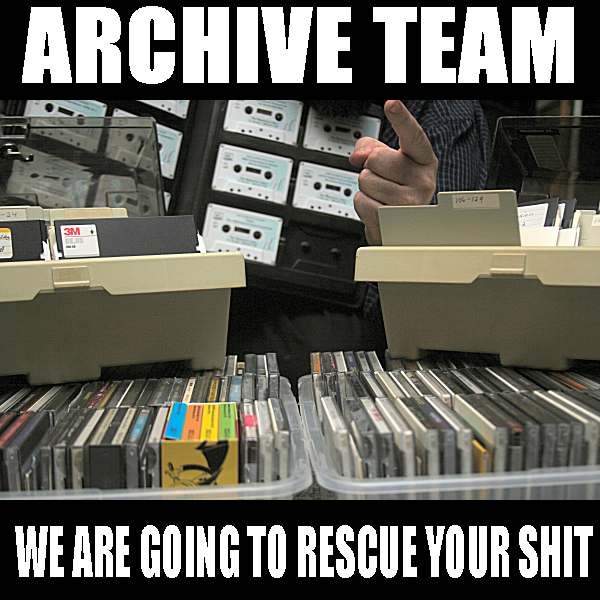
 Formed in 2009, the Archive Team (not to be confused with the archive.org Archive-It Team) is a rogue archivist collective dedicated to saving copies of rapidly dying or deleted websites for the sake of history and digital heritage. The group is 100% composed of volunteers and interested parties, and has expanded into a large amount of related projects for saving online and digital history.

Streaming is available in most browsers,
and in the WWDC app.
-
Writing Great Accessibility Labels
Great accessibility labels are the difference between someone using and loving your app or someone deleting your app. Experience VoiceOver as demonstrated by an Apple Accessibility engineer as she navigates complex UI and demonstrates how descriptive labels are an easy way to ensure your app is for everyone.
Resources
Related Videos
WWDC 2020
-
Download
Good morning everyone.
Good morning.
My name is Jordyn Castor and I work here at Apple on the Accessibility Design and Quality Team. I'm so excited to be here today.
Accessibility is built into our hardware and software design here at Apple.
We believe accessibility is a human right and it's one of our core values.
When I download an app, there's an expectation that it just works.
And I'm able to access all of the buttons, controls, and information using VoiceOver.
To be honest, I give an app a first 30 second glance and if I can't access any of the functionality, I delete it.
Now, I really, really want to use your applications. I do. But, one of the most crucial aspects to our built-in features like VoiceOver, Speak Screen, and Voice Control being able to access the functionality of your app is by the labeling of your buttons, and text fields, controls, and other elements.
So today, I'm going to talk to you about what an accessibility label is, understanding the context for writing great labels, and best practices.
So, let's -- so what is an accessibility label? Well, the definition is pretty short.
It's a localized string that succinctly identifies the accessibility element.
But let's unpack that a bit. Identifies the accessibility element.
What does that mean exactly? It's a human readable, human understandable label that gives context and meaning for the elements in your app.
And writing the code is pretty simple too. It's just getting or setting a string.
But I get it. It's actually pretty difficult to accurately label the elements in your app. And as it turns out, that's all about the context.
So that's what I'm going to help you understand in the next few minutes, is the importance of understanding context.
So, let's dive right in.
What should the label of this button be in your app? Well, by default it might be called plus. And I might be able to figure out what you meant.
But, let's look at that with a bit more context.
What about in a nav bar across from a back button? This is pretty common in iOS apps.
What should the label of this button be here? Add? Well, that might be just dandy. If I'm in a notes app and I hear the word add, I'm going to know that that's going to add a new note.
But remember, these labels are supposed to be succinct. In a shopping context I might need to clarify that a bit further to distinguish this app button from other actions like Add to Favorites.
So, we might need to call that Add to Cart.
And, what if there were dozens of Add to Cart buttons? In this context I might expect VoiceOver to say, add peanut butter to cart.
And hopefully it's not crunchy peanut butter.
To bring it back to the original example, what should the label of this button be in your app? Well, that all depends on the context.
So, now let's talk about some best practices when considering what a label should be.
First and foremost, always, always remember to add labels to your apps. This is crucial. If a label's not added, VoiceOver might speak something like.
Button, button, button. And for all I know guys, that could be the Delete hard drive Partition button and I wouldn't want to press that.
If there is no label added and if there's an image in the button or if there's an image within the button, VoiceOver might speak something like -- Plus underscore icon underscore outline underscore hash nine, nine, nine, nine, nine, nine, dot. What? What does that even mean? So please, please guys, add labels.
VoiceOver knows what the element in your apps is based on the element type.
So, it's redundant to add text to your string like button or tab.
And if you do, VoiceOver would read out the label like -- Add button button.
Hearing this though -- Add button. Makes much more sense.
Remember to update the label