
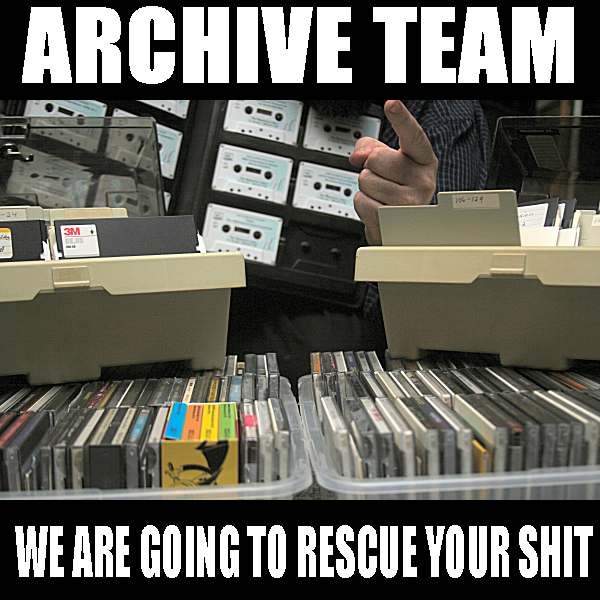
 Formed in 2009, the Archive Team (not to be confused with the archive.org Archive-It Team) is a rogue archivist collective dedicated to saving copies of rapidly dying or deleted websites for the sake of history and digital heritage. The group is 100% composed of volunteers and interested parties, and has expanded into a large amount of related projects for saving online and digital history.

Streaming is available in most browsers,
and in the WWDC app.
-
Design great actions for Shortcuts, Siri, and Suggestions
Actions are the building blocks of shortcuts. They allow people to take advantage of your app's functionality even when they're not looking at your app's interface. We'll show you how to design actions that are useful, easy-to-use, and can be incorporated into powerful multi-step shortcuts. You'll also explore enhancements around publishing and sharing shortcuts, ensuring that people can access your app in the way they want across all of Apple's platforms.
Resources
- Feature your actions in the Shortcuts app
- Have a question? Ask with tag wwdc21-10283
- HIG - iOS - Shortcuts and Suggestions
- Offering Actions in the Shortcuts App
- Search the forums for tag wwdc21-10283
Related Videos
WWDC 2021
- Donate intents and expand your app’s presence
- Meet Shortcuts for macOS
- Qualities of great iPad and iPhone apps on Macs with M1
- What's new in UIKit
WWDC 2020
WWDC 2019
-
Download
♪ ♪ Hi, I'm Ari, and today, along with Cameron, I'm excited to introduce you to the world of Shortcuts and talk about how you can design actions that power great experiences in Shortcuts, Siri, and Suggestions. When we think about designing apps, we usually focus on the details of the UI and what the user can see and feel when they're inside of your app. But in this talk, we're going to do something a little different. We're going to focus on experiences that people can have with your app when your app isn't even open. We think that there's a world of opportunity that we can open up by thinking this way. It all starts with a concept we call "actions." An action is a way of representing a task that people can complete with your app. By creating actions, you can let people perform those tasks in new and exciting ways. Let's say you make the Calendar app. What are some of the most common things people do when they're inside of the Calendar app? Well, people probably add new events, look up existing events, and make changes to events. Those are all great ideas for actions. So, the Calendar app can define an action for each one of those activities. This is where the magic begins. Once the Calendar app creates these actions, people can use them as building blocks to form shortcuts. For example, this Add New Event action is great for quickly adding events to my calendar. People can customize actions, like by setting this one to create events called "Yoga" from 6:00 p.m. to 7:00 p.m. The action can then become a shortcut, which people can use to perform the action whenever they want, in a single tap. People can also mix and match different actions together to form a shortcut that does something even more powerful, like finding all your Calendar events for today and adding a personal meeting room URL to each one. That can form another super valuable shortcut. And people can use actions from different apps together to get even more done in a single shortcut, like this one that gets my next Calendar event and sends a message to the attendees saying I'll be running late.
And these examples are just scratching the surface of what people can do. By creating only just a few actions, the Calendar app has opened itself up to thousands of new use cases that can be used with Shortcuts across Apple devices. With the updated Shortcut editor, anyone can build Shortcuts by dragging and dropping actions together. Creating actions can help people who use your app, even if they don't set up any shortcuts. If you donate actions to the system, Siri will automatically learn how people use your app and will suggest your actions at the right time, in the Suggestions widget, in Search, and on the Lock screen. And people can use any shortcut just by saying its name to Siri. "Hey Siri, Order Starbucks." Just like that, Siri will kick off the action and can ask follow-up questions to get the information your app needs to take an action. So, by creating actions, you're automatically making your app's functionality voice-enabled, so people can use it from anywhere. That extends beyond Siri, too. Shortcuts can be run from across iOS and macOS, like with a single tap from the Shortcuts widget on the Home screen or from the menu bar on the Mac. By exposing actions from your app, you open your app up to a world of Shortcuts possibilities.
Exposing a great action can delight users by saving them time and enabling them to build new things. So, in this session, we're going to try to answer the question, "What makes an action great?" And to walk through that, we've broken it down into a few principles. Great actions are useful, modular, multi-modal, clear, and discoverable. So let's dive in. It sounds obvious that great actions are useful, but what does it really mean to design something that's useful? In the context of Shortcuts, a useful action is one that performs a task that people would normally do inside of your app. Your action should perform the task completely, and you should avoid opening your app into the foreground, unless it's necessary for your use case. Where possible, you should ask follow-up questions instead of opening the app. Let's look at the Reminders app. One of the primary features in the Reminders app is the ability to add a new reminder. When you edit a reminder, you can configure a variety of its attributes. Adding a reminder is something you can do inside of the Reminders app, but it would also be useful to be able to do it outside of the app, so this will make a great Shortcuts action. Here's what the action would look like in Shortcuts. Note that the options you can choose when setting up a reminder are configurable as parameters here. When I use a shortcut to add a new reminder, it should add immediately, without opening the Reminders app. But let's say I'm designing a different action, one that shows a particular list inside the Reminders app. In this case, opening the app is necessary to fulfill the goal of the action, so it's okay to make an action for this. But the action for adding new reminders is a bit more valuable than this one because people can use it without being pulled away from their current context.
One more thing to consider is what to do if your action needs more information from the user to complete, like if someone uses an Add New Reminder action that doesn't have a title specified. In this case, when the shortcut is run, the action can ask a follow-up question, like, "What do you wanna be reminded about?" When possible, you should handle ambiguity by asking a follow-up question, instead of by opening your app, which should be a last resort. A related topic to consider when deciding which actions will be useful is immersion. Your action should perform a task without immersing people in a complex experience. Let's say I'm designing actions for the Apple Watch app. A great feature of this app is the ability to create and customize Watch faces. This is a very complicated and visual task with tons of custom UI controls and live visual previews. Ultimately, it's a very immersive experience, and so it's probably not going to make a great Shortcuts action. On the other hand, a simple task, like switching between Watch faces that are already set up, is not too immersive, and it's something that can be used without your full attention. So this functionality will be really useful as a Shortcuts action. With this action, I can make a shortcut that lets me change my Watch face in one tap, or I could make an Automation that changes it automatically throughout the day. Lastly, the most useful actions are usually the ones that are the most repeatable. When you're deciding which actions to build, prioritize those that are useful on a recurring basis and that can be used quickly and frequently. For example, the Apple Music app has the ability to follow friends. It would be cool to expose this as a Shortcuts action. People could use it in a multi-step shortcut, for example, to follow many friends at once. But if you compare following friends to other features of the Music app, like actually playing music, it's clear that following friends is something that people do much less often. If time permits, it's always better to build more actions, so you could consider making both, but you should always prioritize building actions for the features that people will use the most. So a useful action is one that performs a task, ideally without launching your app, is not too immersive, and is repeatable, in that people will use it quickly and frequently. To tell you a whole lot more about designing great actions, I'm going to turn it over to Cameron. Thanks, Ari! My name is Cameron, and I'm a designer on the Siri and Shortcuts teams. Today, I'm really excited to take you through the finer points of designing great actions. First, let's start by talking about how to design actions that are modular. For the sake of example, imagine there are two separate To Do apps that are both thinking about creating actions for shortcuts. They're called "Dog Do's" and "Shortcats." They both have the same goal: to create a shortcut that enables people to clean up their old tasks. Dog Do's has the idea to create an action called "Clean up old tasks," which seems reasonable. After all, it does everything, all in one. But really, the Cat app has the right idea. They've created a suite of actions that each individually do one thing and together can do so much more. Let's take a look at how that works for our cleanup shortcut. Here we can see Dog Do's and Shortcats can both fulfill the goal of "Cleaning up old tasks." But they do so in a very different way. Dog Do's has a single action, whereas the Cat app combines the Get Task action with an Archive action to accomplish the goal. The first action, "Get tasks created before a week ago," finds old tasks, and the second one archives them. On the other hand, looking at the Dog Do's' action, it's unclear what exactly this action will do because the summary isn't specific. So what will happen when someone runs the Cats' shortcut? For example, with Siri, Siri will ask the user to confirm whether or not they want to archive the tasks, along with showing a preview of which tasks will be archived. This example is using the Get and Archive actions working together. But because the actions are modular, they can also be useful in other combinations, or even standalone. Here, you can see that Archive action is quite useful by itself. When it's used without a Get action, it should ask which task they want to archive. The Get action is also useful on its own, like in this case, where it's used to show all of the tasks I created before one week ago. Already, you can see that the Shortcats' actions are much more extensible than the Dog Do's action, which can't be reused for other purposes. In the context of Siri suggestions, the Dog Do's action is vague; it's difficult to tell what it would do if it was tapped on. On the other hand, Shortcats has donated the Get Tasks action, which includes a parameter: the period of time to get tasks for. This makes it super clear what will happen if someone taps on the suggestion. Including parameters makes for a more approachable and better user experience. In the context of the shortcut editor, again, we can see the Dog Do's action is vague and inflexible, whereas the Shortcats actions' parameters can easily be customized to change the window of task retrieval from one to two weeks. But the story isn't just about your app's actions; it's also about actions that are built in to Shortcuts and actions from other apps. By combining all of these types of actions together, people can create entirely new Shortcuts and use cases with your app. You might be wondering how actions work together. You can see how it works in the Shortcut editor. Each action has an output, which can be passed into the parameter of another action using a variable. Here, the Archive Task action is using a variable called "Cat Tasks" to archive the tasks that meet the criteria specified in the first action. But the Cat app has gone further and exposed additional properties as output from the Get Tasks action, like Reminder, Attachment, Parent task, Deadline, Notes, and the list the Task is in. When people attach other actions, they can employ these output properties to create new functionality. For example, the built-in Show Result action can be used with the Get Tasks action to show all of the notes from all of my old tasks.